
Manage Application Domains and Systems
The application domain organization has an application system with a common business or technical scope, and the application system represents the system that carries the data and can bind the physical model. This page explains how to create, view, and delete application-side assets, and how to check model bindings. For business objects, see Manage Schema Assets.
Asset Hierarchy
| Hierarchy | New Portal | Subcontent | Description |
|---|---|---|---|
| Application domain | [New application domain] button in the application system model area | Application system | System secondary confirmation when deleting |
| Application System | New Portal under Application Domain | Bound Physical Model | Works in the same way as Business Objects |
The operation of creating, editing, and deleting an application system is the same as that of a business object, and the status threshold is the same. See Management Architecture Asset Lifecycle.
New & Edit
- Enter the Application System Model area of Data Model Management.
- Click [New App Domain], fill in the information related to the app domain, and confirm.
- Select the application domain, create a new application system, and fill in the code, name, responsibility information, and description.
- When you need to adjust, select the object, click [Edit] to confirm after modification; after selecting the application domain, the information related to the application domain is displayed on the top right.
Bind the model to the application system
The binding of the application system to the physical model is established in the DDM Client:
- Create or open a physical model in the DDM Client.
- Right-click the model name on the left model tree and click [Properties].
- In the Database Properties tab, select the application system you want to bind to.
- Saves the model to the Model Library.
- Return to the [Model] tab of the application system details to confirm the binding result.
A model should be tied to an application system that can take responsibility for its data. The project name, database instance, and application system mean different things, don't just bind based on name similarity. See Through Data Model for the relationship between the bound model and the schema view.
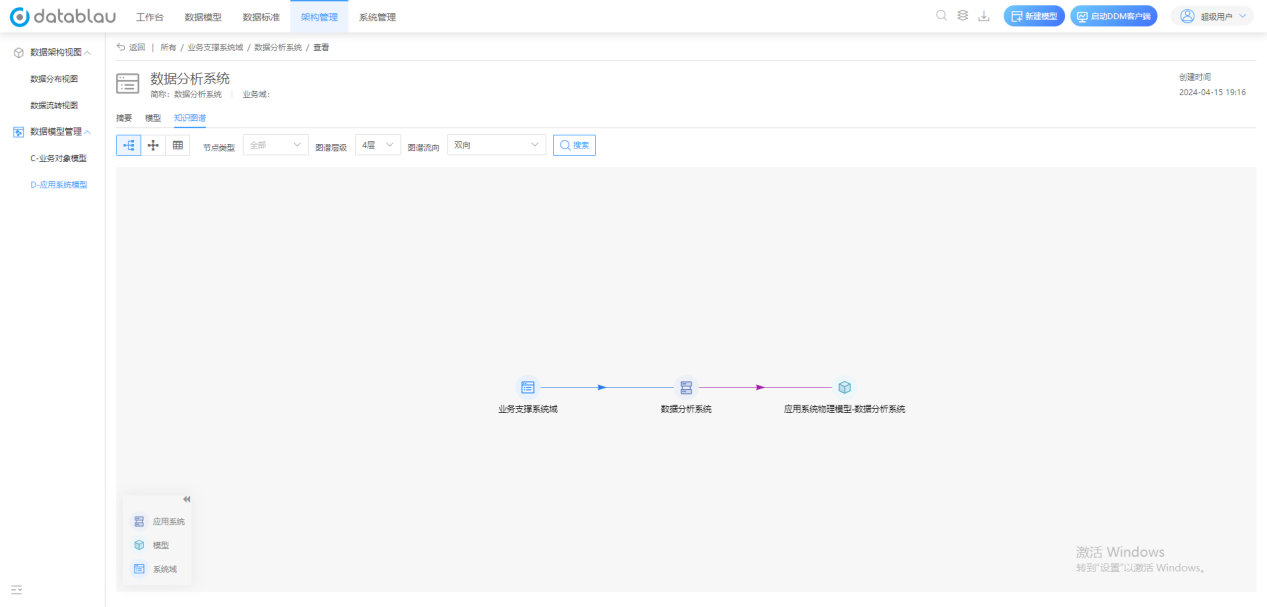
Illustrate the knowledge graph tab of the application system: the three-level relationship between the application domain, application system, and model is clear at a glance, and the missing model node indicates that the corresponding physical model has not been bound or saved to the model library.
View Application
| Tab | Content |
|---|---|
| Abstract | Basic properties of the application system |
| Model | List of models bound by the application system |
| Knowledge Graph | Application Domain - Application System - Model Tertiary Relationship |
Import application
The application system supports the same import method as business objects: [More Operation → Download Template] Download the template, import it after filling in Excel locally, and update the system according to the code. For bulk maintenance considerations, see Import/Export Schema Assets.
Before deleting the application system, you should first check the binding model of the [Model] tab and the reference in the data distribution view. The application system that has entered the formal scope of use prioritizes the abandonment process and retains the historical basis.