
Manage the Asset Lifecycle of an Architecture
Business objects and application systems shall retain responsibility and basis for change from creation, review, release to retirement. Lifecycle operations affect model bindings, schema views, and downstream users and should be controlled through the approval process. The status thresholds of the business object and the application system are consistent. This page takes the business object as an example.
Status Threshold
| Current State | Allowed Actions | Prerequisites |
|---|---|---|
| Draft (unpublished) | Edit, publish, delete | Initiate approval process for publishing |
| Published | Edited, obsolete | Published objects cannot be deleted directly, they need to be discarded first |
| Abandoning for Approval | Pending for Approval | Object remains in publishing state until approval is complete |
| Abandoned | Deleted | Automatically unbinds the model that binds the object after deletion |
Only published business objects can be discarded; only obsolete or unpublished objects can be deleted. The deletion operation has a second confirmation, and the associated model and view are checked before execution.
Publish asset
- Complete the object basic information, extended properties, and model associations.
- Click the [Publish] button to enter the release approval process.
- Approvers find the process in My Pending to see the subject content and the scope of the change.
- Fill in the comments in the approval comments and click Adopt. The returned comments will be revised and resubmitted.
- Check the object state, model relationships, and schema view after a successful release.
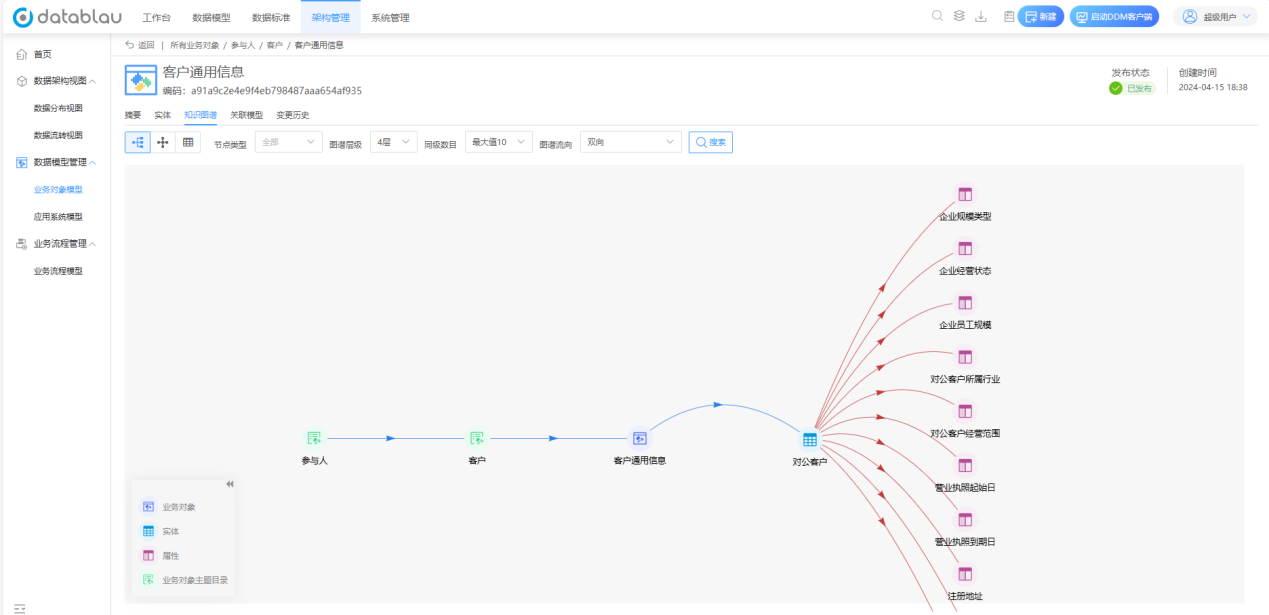
Illustrates the details of a business object in a published state: the publishing state in the upper right corner is marked as published. After publishing, you should return to this page to check whether the entity tab and the knowledge map are updated synchronously.
When publishing a logical or physical model, the correct version should be selected. The object has been published but the model is still in draft state, resulting in inconsistent details and view content.
abandoned assets
- Select the published object and click the [Discard] button.
- The object enters the abandoned approval process, and the object is still in the publishing state until the approval is completed.
- The object is in an abandoned state after being approved by the administrator.
- If you need to completely remove it after it is discarded, then perform the deletion.
Retire assets that have been published but are no longer in use and keep a history for retrospective purposes. For objects that have entered the scope of formal use, priority is given to discarding rather than deleting them directly.
Removing Assets
Deleting the business object may unbind the model; deleting the application system affects the physical model attribution and distribution view. Before executing Export Object List as a baseline, check all associated models and views. The entry and status restrictions for deletion are shown in the status threshold table for Manage Schema Assets.
Change History
After selecting an object, click the Change History tab to view changes in object properties, status, and associations. After editing the published object, record the reason for the modification and re-complete the necessary approvals.
Significant changes include coding adjustments, hierarchical migrations, changes in responsible departments, model unbinding and changes in data responsibility. Such modifications shall be notified to the relevant model owners and application system owners. The version record on the model library side is shown in Change History.
Import Export Impact
The system updates the import data by the business object encoding, and the duplicate encoding is overwritten. Export stock assets before batch changes. After importing, check the results in the test catalog. For the complete rules, see Import/Export Schema Assets.