
Business Object Actions
This page explains how to create new business objects, maintain business objects and their business entities in the editor, translate business object names, and apply object standards. See Business Objects for the concept and scope of Business Objects.
New Business Object
- Expand the Business Object node in the Model Tree, or double-click or right-click in the canvas to open the Business Object Editor.
- Click New in the pop-up window.
- You can also directly create a new business object by clicking Business Objects in the top toolbar, and then clicking where appropriate in the canvas.
- Complete and save attributes such as business object names in the editor.
Confirm that the current model is in a conceptual or logical model before creating a new one. Business objects are not provided in the physical model.
Using the Business Object Editor
The Business Object Editor maintains all business objects in the current model or subject field. In addition to new and deleted, business object names and other attributes can be edited in the editor. Click "Multi-select Cells" to enter multi-select mode and select multiple cells, supporting intra-client copy-paste and mutual copy-paste with Excel.
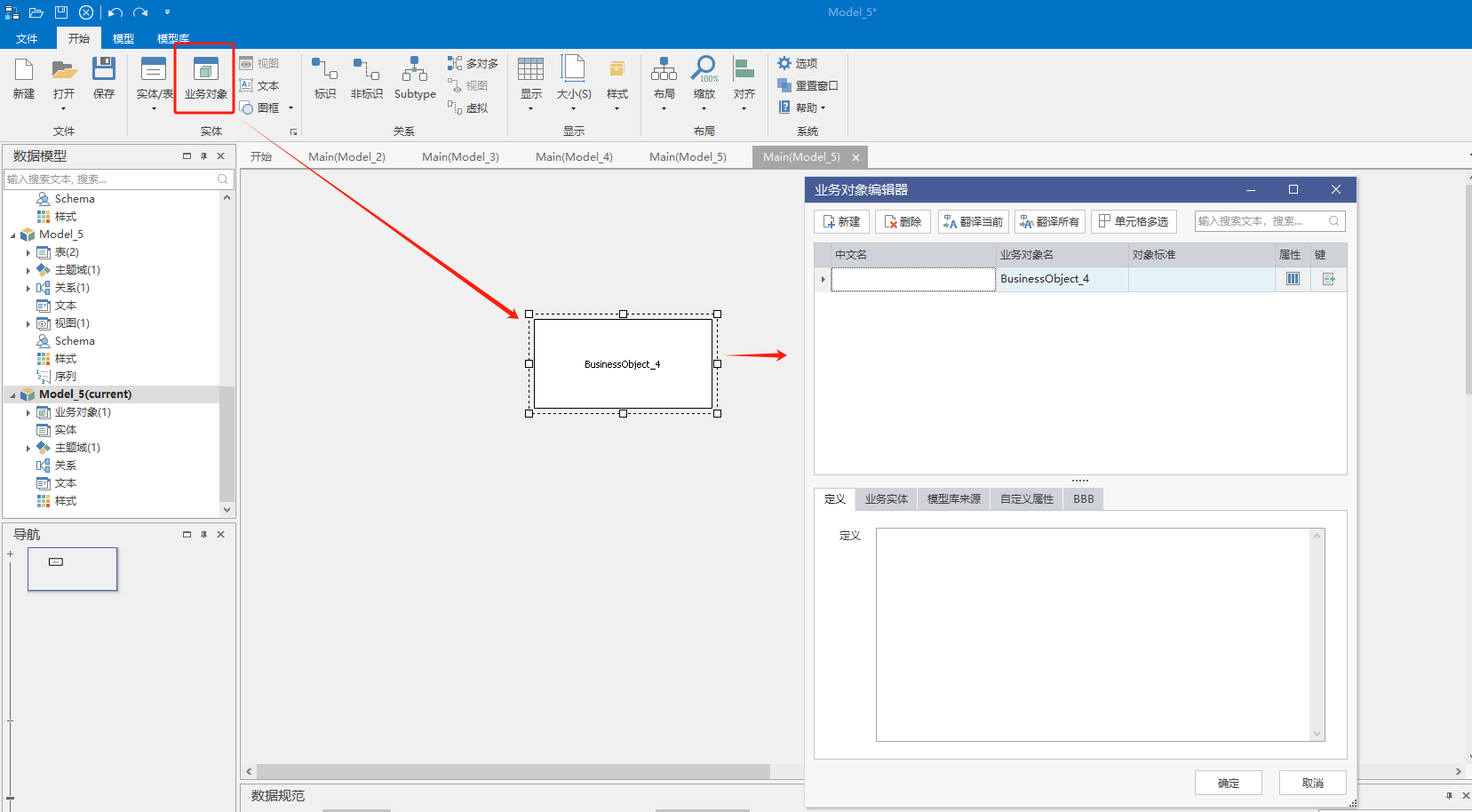
The diagram shows the business object editor: the upper list maintains the business object properties, and the Business Entity menu in the lower property bar is used to maintain the business entity that the business object contains.
Maintain Business Entities
- Select a business object in the editor.
- Switch to the Business Entity menu in the property bar below.
- Add the business entity that the business object contains, pointing to the entity/table in the model.
- After saving, the business object establishes an attribution relationship with the selected entity.
A business entity is a connection between a business object and a model entity, and the same entity can belong to multiple business objects. Align columns to avoid misalignment when crossing properties with Excel.
Business Object Name Translation
- First, maintain the Chinese and English contrasting root in the naming dictionary, and confirm the naming rule in the naming settings.
- Enter the Chinese name of the business object in the editor, click "Translate Current" or "Translate All", and generate the English business object name according to the dictionary and naming settings.
- You can also turn on automatic translation in the bottom right corner of the client, enter the Chinese name and then automatically fill in the name.
Apply Object Criteria
The enterprise-level standard business object maintained in Archy can be applied to the business object of the current model as an "object standard", similar to the field reference data standard.
- Opens the Business Object Editor.
- Click the Object Criteria cell in the list.
- Select the appropriate business object criteria in the standard selection interface and apply them.
- Check whether the business object name and other attributes meet the standard requirements.
The object standard is used to standardize the design of business objects, and after application, the definition of business objects is adjusted according to the enterprise standard. For Archy side maintenance, see Manage Schema Assets.
Notice
- Business objects are only used for conceptual and logical models, and physical models correspond to entities/tables.
- The object standard comes from Archy, and the content of the enterprise-level standard is not modified locally.
- The translation results depend on the integrity of the roots. When the roots are missing, the names need to be completed manually.