
Through data models
Archy translates enterprise-level business concepts into executable data structures through business object logical models and application system physical models. Once model relationships are established, entities, attributes, physical tables, and application systems can be viewed from business objects, or their bearer models can be tracked from the application system.
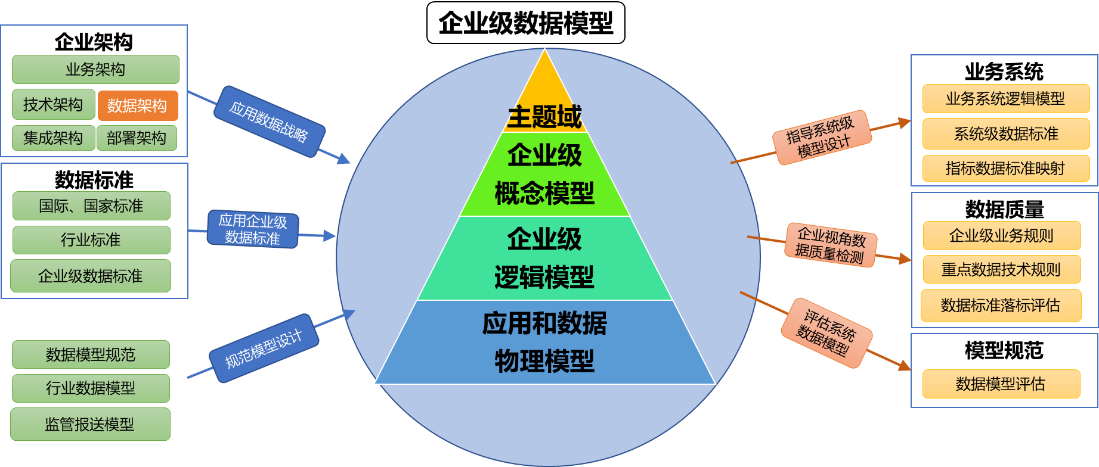
Illustrate the relationship between the three layers of conceptual, logical, and physical models: the association, binding, and relationship establishment described on this page are the specific operations that run through these three layers and the architectural objects.
Associated Business Object Logic Model
Only after the business object is associated with the logical model can the entities under the ER diagram and business object be viewed on the web side.
- Create and publish business objects in Archy.
- Create a Business Object Logical Model in the DDM Client, see Business Object Actions.
- Create entities, properties, and relationships in your model.
- Right-click the model in the left model tree, open the properties, and select the published business object in the [Enterprise Architecture] tab.
- Click OK to complete the association, select the model catalog, save as, and save the model to the model library.
- Open the model in the model library and click the [Publish Model] button in the upper right corner of the detail page.
- Select the latest version, click [Apply for approval], and see Model approval for the approval operation.
- After approval, return to Archy's business object list to confirm that the object has been republished, and check the associated results in the details.
Unpublished business objects may not be available for formal associations. When the model is saved but not approved, the content seen on the web side may still be the last published version.
Bind Application System Physics Model
- Create an app domain and app system in Archy.
- Create or open a physical model in the DDM Client.
- Right-click the model name on the left model tree, click Properties, and select the target application system in the [Database Properties] tab.
- Save or check the model into the model library.
- Confirm the binding result on the [Model] tab of the application system details.
A model needs to be tied to an application system that can take responsibility for its data. The project name, database instance, and application system mean different things, don't just bind based on name similarity.
Establish the relationship between the entity and the physical table
| How | Where | Description |
|---|---|---|
| Inheritance and transformation | Clients, see Inheritance and transformation | Transforming generating logical models while creating entity-table relationships |
| Form Creation | Client Impact Analysis | Bind logical entities for a single physical table in the model library |
| Batch Creation | CRUD Relationship Explorer | Match the relationship between the two models by table name and field name |
Recommended construction order: business objects determine logical boundaries, logical entities refine attributes and business relationships, physical models implement tables, fields and database implementations, application systems clarify the bearing position of physical models, and CRUD relationships explain the responsibility of creating, reading, updating and deleting data.
Validate Penetration Results
Examine summaries, entities, properties, table associations, and knowledge graphs in the business object details; examine binding models in the application system details; examine CRUD relationships in the data distribution view. The following scenarios illustrate that the relationship is still incomplete:
- The business object exists, but there is no logical model associated with it.
- The logical entity exists but cannot be traced to the physical table.
- The physical model exists but the application system is not bound.
- The distribution view has only a read relationship and does not recognize the data master system.
- The model has not been published after modification, and Archy still shows the old version object.
Processing is completed before proceeding to release and architecture review to avoid generating a formal architecture view in an incomplete relationship.