
Model Branch Management
A model can be designed in parallel by creating multiple branches, each of which can be regarded as a separate model: there is an independent model tree, an independent version sequence, and it also needs to be submitted separately. Branches are the basic unit for multiplayer collaboration and publishing management.
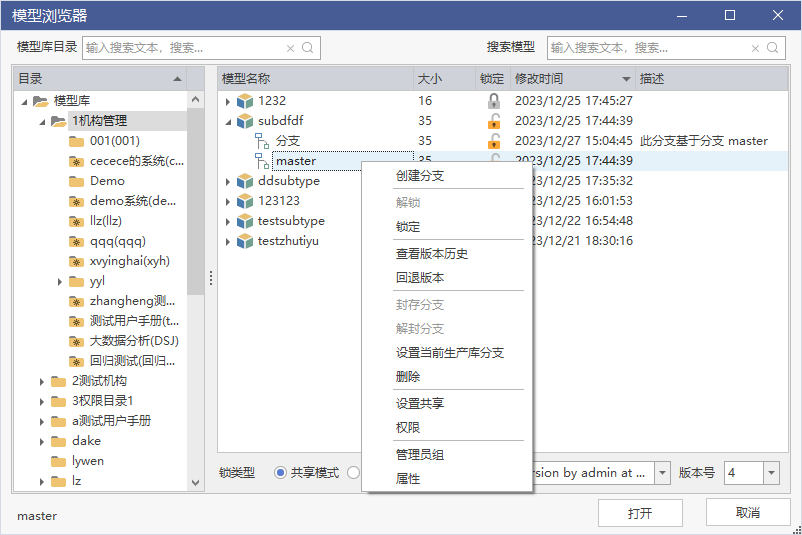
Illustrates the list of branches expanded in the model library browser. The branches are in the same tree as the model name. The right-click branches can see the create branch, archive branch, version, and other menus.
Branch vs. Master Branch
| Object | Description |
|---|---|
| Master Branch | The default branch that comes with the model when it is created; created based on the master branch when a new branch is created for the model |
| Branch | A separate design line derived from the selected branch, with its own version sequence |
| Version | Node generated per check-in on the branch for historical tracing and script generation |
The branches do not affect each other after they are created: edits on branch A do not automatically appear on branch B or the main branch. Changes across branches need to be done by moving in or comparing merges, see Model Comparisons.
Branch creation
- Locate the target model or branch in the browser of the Warehouse → Open Warehouse.
- Right-click the model name or existing branch name and select Create Branch.
- The primary branch is used as the starting point when creating a new branch for a model, and the branch is used as the starting point when creating an existing branch.
- After entering the branch name, confirm that the new branch is now in the branch list under the model.
- Open a new branch and confirm that the range of objects in it and the starting version match expectations before starting the design.
Edits on branches are also subject to permissions. The read and write levels in the model permissions already contain a New Branch, see Model Management for a complete comparison of the three levels of permissions.
Archive Branch
After you right-click a branch and select Archive Branch, the branch can no longer perform any save and check-in version operations.
- Archiving is used to pin down branches of a published or completed mission to avoid further modifications.
- After archiving, the branch can still be opened for viewing, and can also be used as a basis for comparing objects and script generation.
- Archiving blocks subsequent submissions and should be performed after confirming that the branch no longer needs to be changed.
Typical Usage
| Usage | How branches are organized | See |
|---|---|---|
| One Model Multi-Collaboration | Multiple submissions on a single model, reviewed to form a baseline version | One Model Multi-Collaboration Mode |
| Baseline Model Plus Demand Branch | Primary Branch as baseline, one branch per demand | Baseline Model vs. Demand Branch |
| Mainline Model plus Publishing Branch | Open one branch at a time, and return to the main line after publishing | Mainline Model and Publishing Branch |
The web admin side also supports creating branches, see Creating Branches for the entrance.
Notice
- Deleting a branch only affects that branch; deleting a model cleans up all branches and associated reports under that model.
- Changes that are not submitted on the branch for a long time exist only locally and are not visible to others and cannot be participated in the review.
- The branch naming suggestion reflects the purpose and responsible person, and avoids multiple branch names with unknown meaning, resulting in the wrong object when the script is generated or merged back.
- The return direction and the current state of the main branch need to be confirmed in advance, and the return order will affect the conflict range of the subsequent branches.