
Property/Field Actions
This page explains how to create a new, bulk-maintained field in the client, and how to create a custom standard based action path that references or clears the data standard for the field. See Properties/Field Properties for the meaning of the values of the properties of the field, and Properties/Fields for the conceptual boundaries of the properties and fields.
Add New
- Expand the entity/table in the model tree, or double-click the table name in the canvas, right-click to open it, and enter the property/field editor.
- Click "New" in the editor to fill in the list with field names, Chinese names, data types, non-empty information, etc.
- Alternatively, first select the entity/table in the canvas and press Enter to enter Quick Edit Table mode.
- Enter the field name directly when the cursor is in the
Newposition, and press Enter to create the field continuously. - Save the model so that field changes are written to the current model or subject field.
The canvas carriage return is suitable for continuous entry, and the editor is suitable for maintaining multiple fields and their properties at once, both of which are written to the same batch of fields.
Using the Field Editor
The Field Editor maintains all fields in the current model or subject field. In addition to new and deleted, you can directly edit the field name, Chinese name, data type, non-empty, etc. in the list row, and maintain the remaining properties and database-related physical storage properties in the attribute bar below.
| Operation | Method | Description |
|---|---|---|
| Multi-Select Fields | Ctrl-Click Multiline | Batch Move, Delete, Translate Selected Fields Up and Down |
| Cell Multi-Select | Click Cell Multi-Select to enter Multi-Select mode | Copy and paste after cell selection |
| Copy and paste | Within the client or between the client and Excel | Verify that the target columns are in the same order before pasting |
| Move up and down | Click the up and down arrows above the list after selecting a row | Shift-click to move one step to the top or bottom |
| Translation | Click "Translate Current" or "Translate All" | Generate English names based on naming dictionary and naming settings |
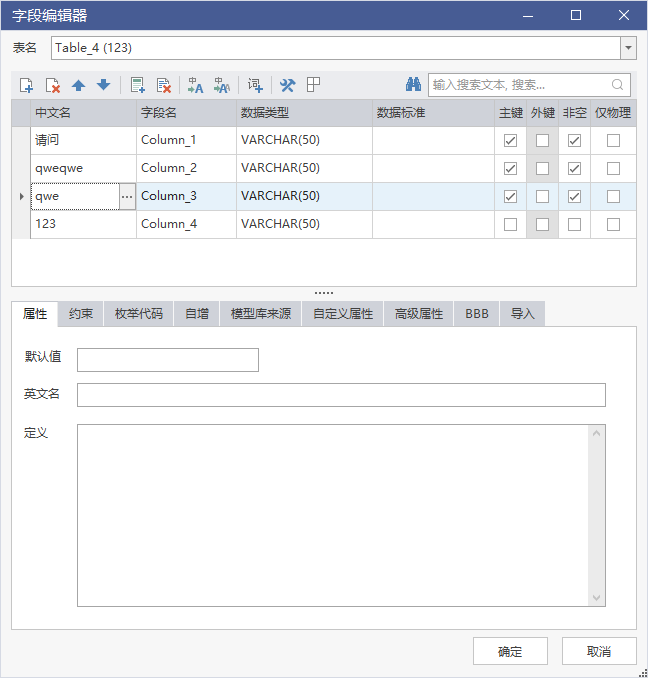
The figure shows the field editor: the upper list maintains the field name, Chinese name, data type, and the lower property bar maintains the constraints, etc. At the top, buttons such as translate, create standards, and clear standards are provided.
Field Name Translation
- First, maintain the Chinese-English control root in the Naming Dictionary, and confirm the naming rules of the current model in the Naming Settings.
- Enter the Chinese name in the field in the editor, click "Translate Current" to translate only the current line, and "Translate All" the field with the Chinese name already filled in the bulk translation list.
- You can also turn on automatic translation in the bottom right corner of the client, and enter the Chinese name to automatically fill in the field name when modeling.
When the dictionary is not maintained or the root of the word is missing, the translation result may remain in Chinese or empty, requiring manual completion.
Reference Data Standards
There are three entries to the field reference data standard, and the bid results are consistent:
- Enter the Chinese name Lenovo: When editing the Chinese name in the field, the client retrieves the published data standard of the server according to the input content, and directly references it after selecting it.
- Cell Selection: Click the data standard cell in the list, select the target criteria in the standard browse pop-up, and click Apply to field to complete the landmark.
- Resource directory drag: drag the data standard in the resource directory on the right to the appropriate location in the table to create a new field and reference the standard at the same time.
| How to Apply | Whether to Inherit Standard Technical Properties |
|---|---|
| Build mappings only | No, only record reference relationships, existing data types of fields, etc. unchanged |
| Map and synchronize properties | Yes, standard technical properties are written to fields |
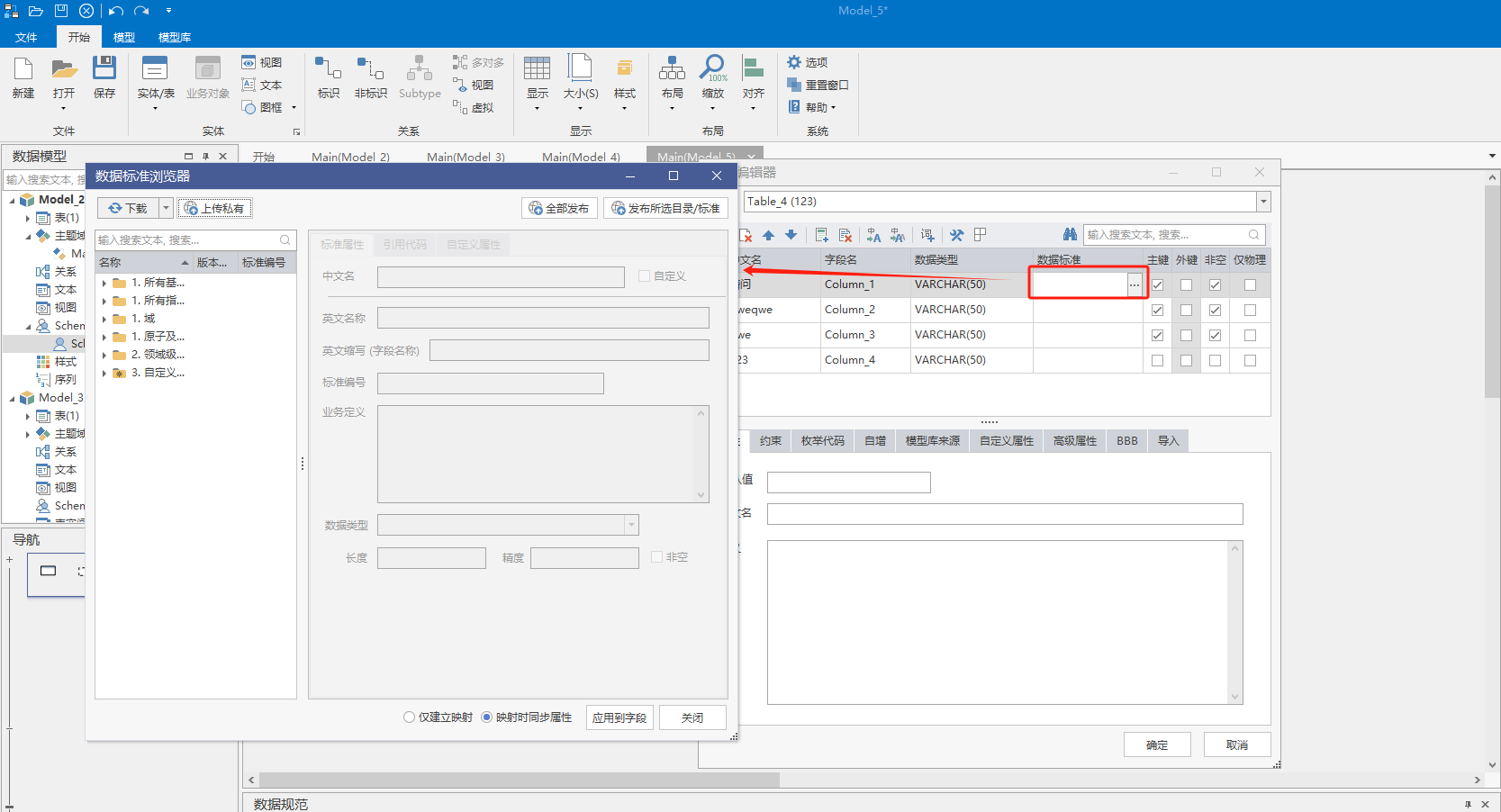
The illustration is the field paragraph marker interface: after selecting the criteria in the standard browsing pop-up, you can select "Build Mapping Only" or "Map and Synchronize Properties" at the bottom, note that the two items handle the field properties differently.
When the field has been personalized, select "Map and Sync Attributes" to overwrite the field with the standard, and then use it after confirmation.
Clear References & Create Custom Criteria
- Select the marked field and click Clear Criteria at the top of the editor to unreference the field from the data criteria.
- When there is no matching standard in the current standard library, and the field appears repeatedly in the model, click "Create Standard" at the top after selecting the field, complete the information in the pop-up new custom standard window and confirm, and save the standard to the Custom Standard category.
Notice
- Moving the field up and down may affect the order of the primary key members corresponding to the foreign key. After moving, check the relationship properties.
- Align columns when mutually gluing with Excel, avoid gluing Chinese names into adjacent columns such as field names.
- After the new version of the referenced standard is released, it can be synchronized uniformly in the data standard check, without having to redo it field by field.