
Managing Business Objects and Entities
The business object detail page is the main entry point for checking the implementation of the business architecture: from summary information to entities and attributes, to the full-link knowledge graph from subject domain grouping to attributes. This page explains the content and prerequisites for each tab on the detail page. For creating and editing business objects, see Manage Schema Assets.
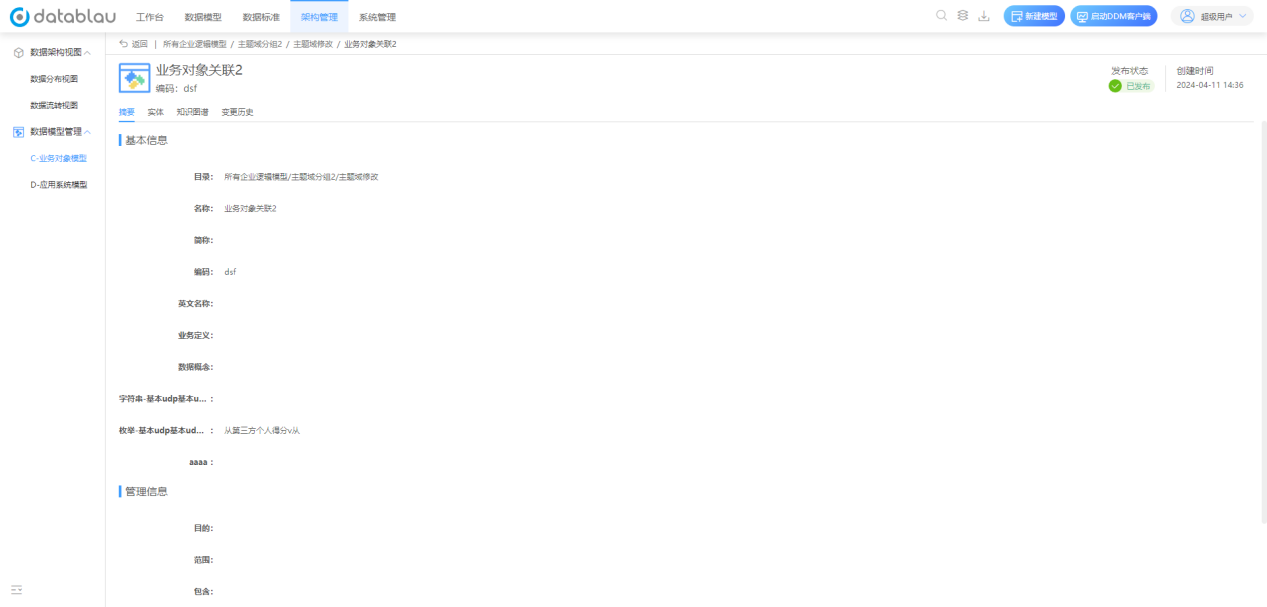
View summary and extended properties
- Select the target business object in the Business Object Model area.
- Click [View] to enter the viewing page.
- Check summary information and extended property information on the View page.
Extended attributes appear in basic information to supplement company or industry-specific enrollments. Return to the edit entry to modify the content when there is a discrepancy.
View Entity
- On the View page, click the [Entity] tab to toggle.
- The Entity List displays the entities under the Business Object Logical Model that the Business Object is associated with.
- Click an entity row to display a physical table of relationships for that entity; table associations can be created through the client's Impact Analysis.
- Click the [View] button after the entity name or line to enter the entity details and view the entity's properties (fields), key information, basic information, and knowledge graph.
- Click the [View] button of the property in the entity details to enter the property details page to view the basic information and knowledge graph of the property.
An empty entity list usually means that the business object has not yet been associated with a logical model, or the associated model has not yet been published. See Through Data Model for the processing method.
An entity tab that illustrates the details of a business object: Above is a list of entities, and after selecting an entity row, you can expand the physical table with which it is related, which is a key step in checking whether the business object falls into the physical table.
View Knowledge Graph
Click the [Knowledge Graph] tab to display the full link information of the business object from the subject domain grouping, subject domain, business object, entity to attribute. The same link can also be viewed on the entity and property detail pages.
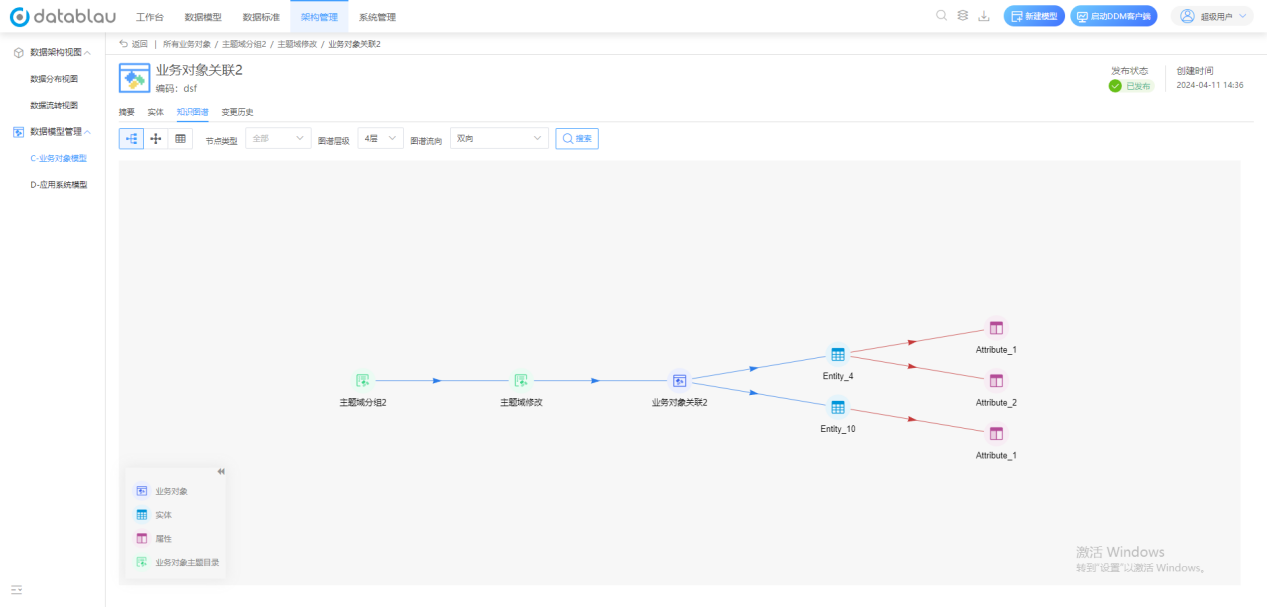
Illustrate the knowledge graph of business objects: Check whether there are nodes in each layer along the direction of grouping to properties in the subject field. The location where the chain break occurs is the level where the relationship has not been established or the model has not been published.
Prerequisites for the Correlation Logic Model
To display the ER diagram and entity, the business object must first be associated with the client. For the complete steps, see Through Data Model:
| Step | Location | Results |
|---|---|---|
| Publish Business Objects | Archy | Business Objects can be selected in the Enterprise Architecture tab of the client |
| Creating Business Object Logical Models and Entities | DDM Client, see Business Object Actions | Entities and Properties in a Model |
| Model Attributes Associate Business Objects | DDM Client Model Attributes Enterprise Architecture Tab | Model Relates to Business Objects |
| Save to Warehouse and Initiate Publish Approval | DDM Client vs. Warehouse | New Content Visible on Backend |
When the model is saved but the approval is not completed, the content seen on the web side may still be the last published version.
View change history
Click the [Change History] tab to view the properties, status and correlation changes of the business object. When the entity is missing or the status does not match, first confirm the latest operation against the change history, and then press Lifecycle Page.