
Maintain CRUD relationships
The CRUD relationship describes the responsibility of the application system for creating (C), reading (R), updating (U), and deleting (D) data entities, and is the data source for the data distribution view and the data flow forward view. Relationships are maintained by field in the DDM Client and aggregated in the Archy after being saved to the Model Library. See Using the schema view for instructions on the view side.
Concepts and premises
| Concepts | Meaning |
|---|---|
| CRUD | Field-level data action type that identifies which system created, read, updated, or deleted the data |
| Primary Replica Relationship | The primary replica and the replica of the same data are divided between multiple systems, and the main system is responsible for writing |
| Source field | The reference field when establishing the CRUD relationship must be a field in the physical model of the model library that has been opened by the client |
Maintenance Prerequisite: The target physical model has been saved to the model library, and the current account can open the relevant model in the client.
Single Field Creation
- Open the physical model in the model library in DDM Client.
- Open the Schema Management tab of the Field Editor.
- Select the CRUD relationship type and select the source field for the CRUD relationship.
- The CRUD relationship of the field was created successfully when the model was saved to the model library or checked in and saved.
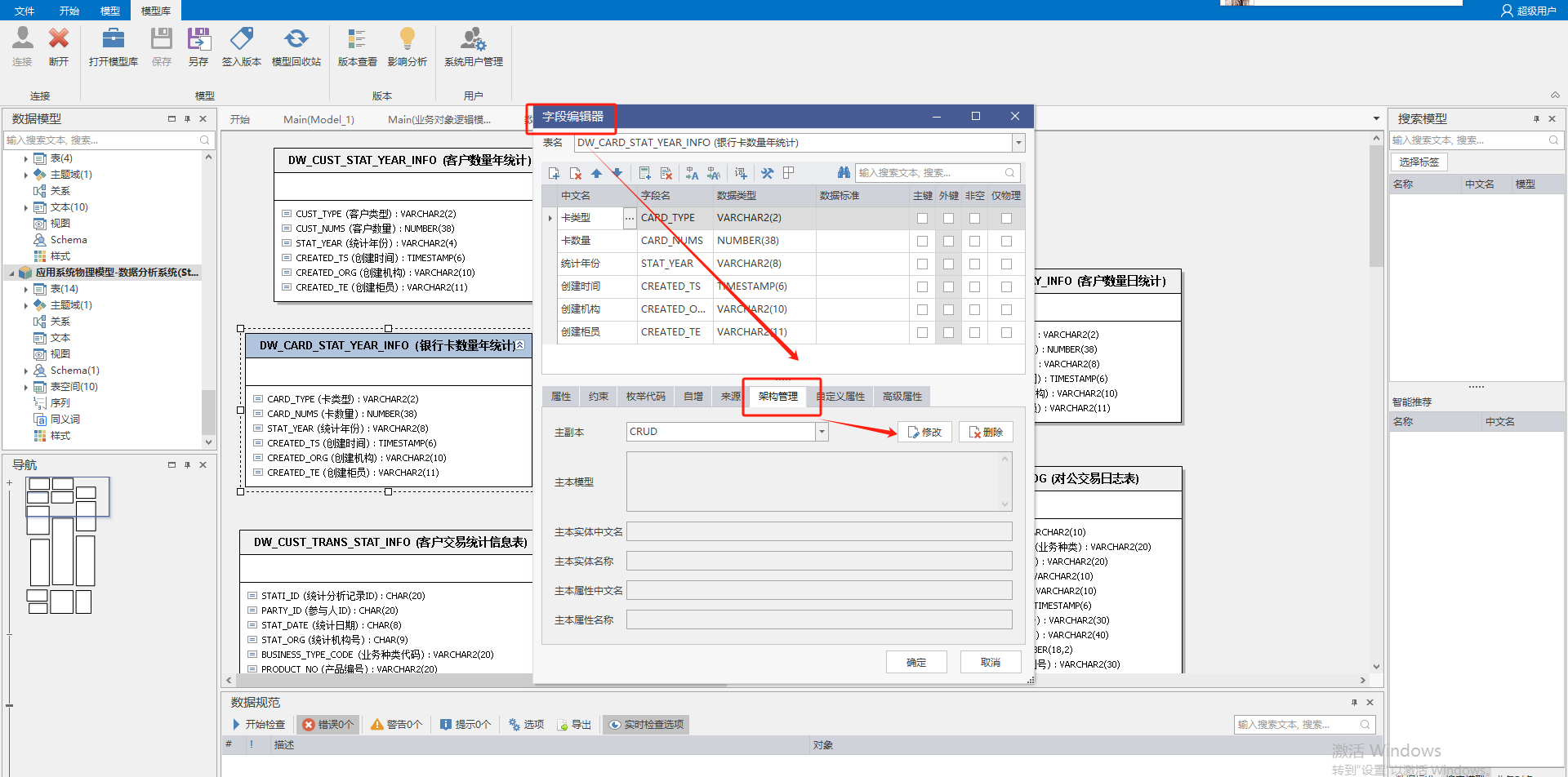
Schema Management tab of the Diagram Field Editor: Select the CRUD type for the current field and specify the source field to check the direction of the relationship before saving, so as to avoid setting the read relationship to the write relationship by mistake.
Be able to select the model as the source field, only the physical model of the model library that is currently open in the client; models that are not warehoused locally cannot be used as the source.
Batch Create
- Open the physical model in the DDM Client and find the CRUD relation browser in the Toolbox.
- The CRUD relationship establishment for all fields of the current model is displayed in the Relationship Browser.
- Click the [Batch Build] button to select a model library physical model that is already open in the client.
- Click [Start Matching], and the system will match in batches according to the Chinese and English names of the fields.
- Check Match Successful Data, click the [Match Selected Data] button to create a CRUD relationship for the field in bulk.
Matching results are candidates only and should not be viewed directly as correct results. Fields with the same name but different business meanings must be excluded, and matching must be performed after confirming the semantic consistency.
Relationship of Physical Tables to Logical Entities
| Approach | Entrance | Scope of application |
|---|---|---|
| Inheritance & Transformations | Client Model menu, see Inheritance & Transformations | Transformations generate a new model with an entity-table relationship automatically |
| Form Creation | Impact Analysis Browser, see Impact Analysis | Binding a Logical Entity to a Physical Table |
| Whole model batch | Browser with CRUD relationship | Match the relationship between the two models by table name and field name |
When creating a single table, right-click [Impact Analysis] on the physical table of the model library model, click [Create] in the browser, select the object type entity, select the logical entity, and then confirm. These relationships determine whether the business object can track the table fields in the actual application system, see Through Data Model.
Aggregation Rules for Parent Views
Business Object-Application Domain View Based on Entity-Application System View Aggregation:
| Lower Relationship Situation | Upper Presentation Results |
|---|---|
| The relationship between all entities under the business object and all application systems under the application domain is CRUD | The upper-level relationship is CRUD |
| There is any R in the underlying relationship | The upper relationship is R |
| Incomplete subordinate relationships | Parental results should not be interpreted as a complete responsibility to create, update or delete |
When it is found that the parent results do not match the expectations, first go back to the entity-application system hierarchy and check whether the field-level relationship is complete.