
Manage rule templates and business rules
Rule templates provide reusable validation expressions. Business rules describe business requirements; technical rules implement executable checks. Set up quality folders and permissions first.
Create a rule template
- Go to Data Quality > Rule Management > Rule Templates and click New.
- Enter the template name, category, and rule content.
- Define column, table, view, and code value parameters as needed.
- Save, use View to verify the template, and Edit to maintain it.
For bulk entry, download the Excel template from More > Import, complete it, and import it. Select the scope before exporting or deleting. Review dependent rules after changing a template.
Create a business rule
- Open Business Rules and click New.
- Enter the name, folder, rule type, business type, organization, and description.
- Specify a testable requirement with its objects, scope, and failure conditions.
- Save and submit for publication approval. If the simplified workflow is available, use Save and Publish.
- Verify Published status before creating a technical rule that references it.
Unpublished rules are private and cannot have associated technical rules. Saving does not publish a rule.
Check implementation coverage
In the list, check associated technical rules and tasks. Open details to follow links to technical rules, validation tasks, and issues. Visibility depends on menu and business folder permissions.
Change and deprecate rules
The first save when editing a published rule creates a change draft. Further edits affect the draft. Approval replaces the published content with the draft.
The simplified workflow supports Save and Publish directly. When a technical rule references a business rule, its folder and rule type cannot be changed. Resolve dependencies before deprecating. Unpublished rules, deprecated rules, and change drafts can be deleted where permitted.
Maintain rules in bulk
Download the business rule template from More > Import. Complete the name, folder, rule type, business type, status, description, and organization. Import one .xlsx file at a time. Select content and error handling before uploading.
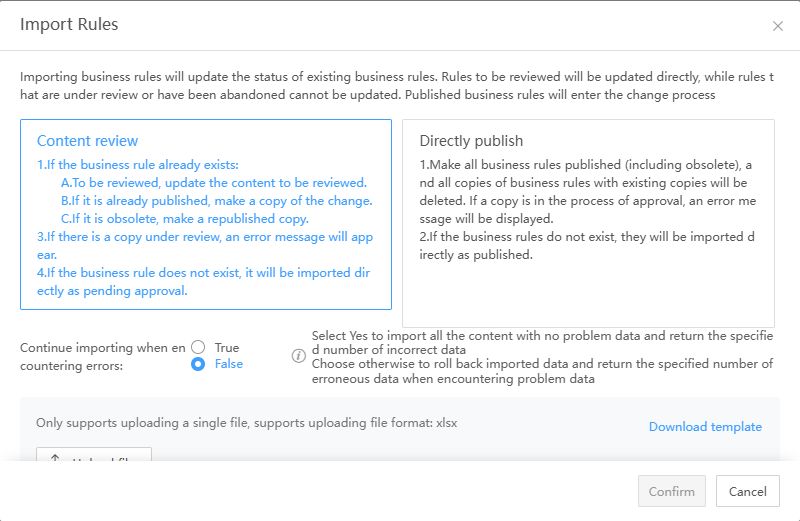
Choose how to handle content
| Existing status | Result with Content Review |
|---|---|
| Does not exist | Import as unpublished |
| Unpublished | Update unpublished content |
| Published | Create or update a change draft |
| Deprecated | Update and change to Unpublished |
| Rule or draft under review | Reject the update |
Publish Directly publishes imported rules, including deprecated rules. Confirm scope and authorization. The documented behavior also removes existing change drafts; drafts under approval cause an error. This option cannot bypass unfinished approval. Inspect official rules and drafts after import, not only the number added.
Choose how to handle errors
- Set Continue importing on error to Yes to import valid rows and return invalid rows. Results can be partially successful.
- Select No to roll back imported data on error and return invalid rows.
Check required fields, folders, types, statuses, and organizations in error records. After partial success, verify successful rows and statuses before reimporting the whole file.
Verify import and export results
- Check successful and failed rows in the results.
- Find representative rules and verify their folder, organization, description, and status.
- For published rules, determine whether official content changed or only a draft was created.
- Export for offline review if needed, matching the export and change scopes.
Next: Create technical rules.