
Administer Data Governance Agents
Screenshot note: Screenshots are illustrative. Controls or labels may remain untranslated in the demo release, and pages without a faithful English capture retain the source illustration. Control names and layouts can vary by release.
Use Configuration Management in DIG to maintain agents and reusable resources. Select the correct agent before maintaining its models, tools, Skills, files, and governance capabilities.
Configuration relationships
Agent
|-- Model
|-- MCP services
|-- Internal services
|-- Skills
|-- Prompts and parameters
`-- Workspace

Sprites perform individual tasks. Routines orchestrate Sprites.
User files supply controlled context.
Apply least privilege: configure only the models and tools an agent needs.
Agent management
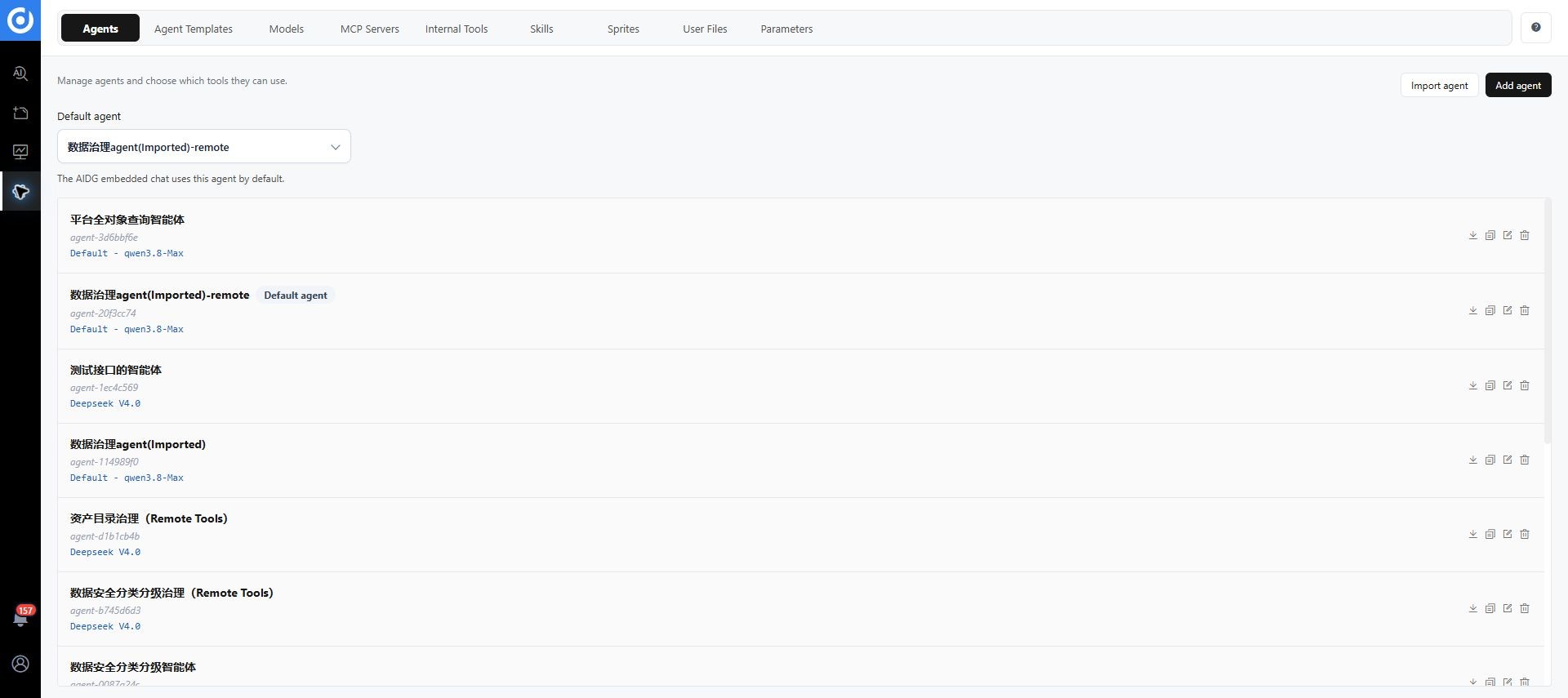
Create or import an agent
- Open Configuration Management > Agents and select Add Agent or Import Agent.
- Enter a name and define responsibilities, permitted scope, and output requirements in the system prompt.
- Select an approved model.
- Configure the system prompt and required parameters.
- Bind necessary tools, internal services, and Skills.
- Configure the Workspace as needed.
- Test with non-sensitive samples.
- Save and use the available publishing workflow. Verify agent selection in a new session.
Review package origin, dependencies, permissions, prompts, and environment values before publishing an imported agent.
Agent templates
Templates are configuration snapshots that cannot execute directly. Data Governance Agent templates and Business Query Agent templates serve different phases. Instances are isolated from subsequent template updates, and Routine schedules are not copied. See agent templates.
Test and publish
Test normal and empty input, wrong objects, excessive scope, insufficient permissions, and unavailable services. Confirm the required approval workflow and that tools and data remain restricted to authorized users.
Model management
Use Model Configuration for shared LLM and Text Embedding resources. A connection test must pass before saving, and embedding dimensions must match actual output. Review the recommended LLM parameters and model service guide. Verify a small governance task in the target agent after saving. Default model and default agent are separate settings.
MCP management
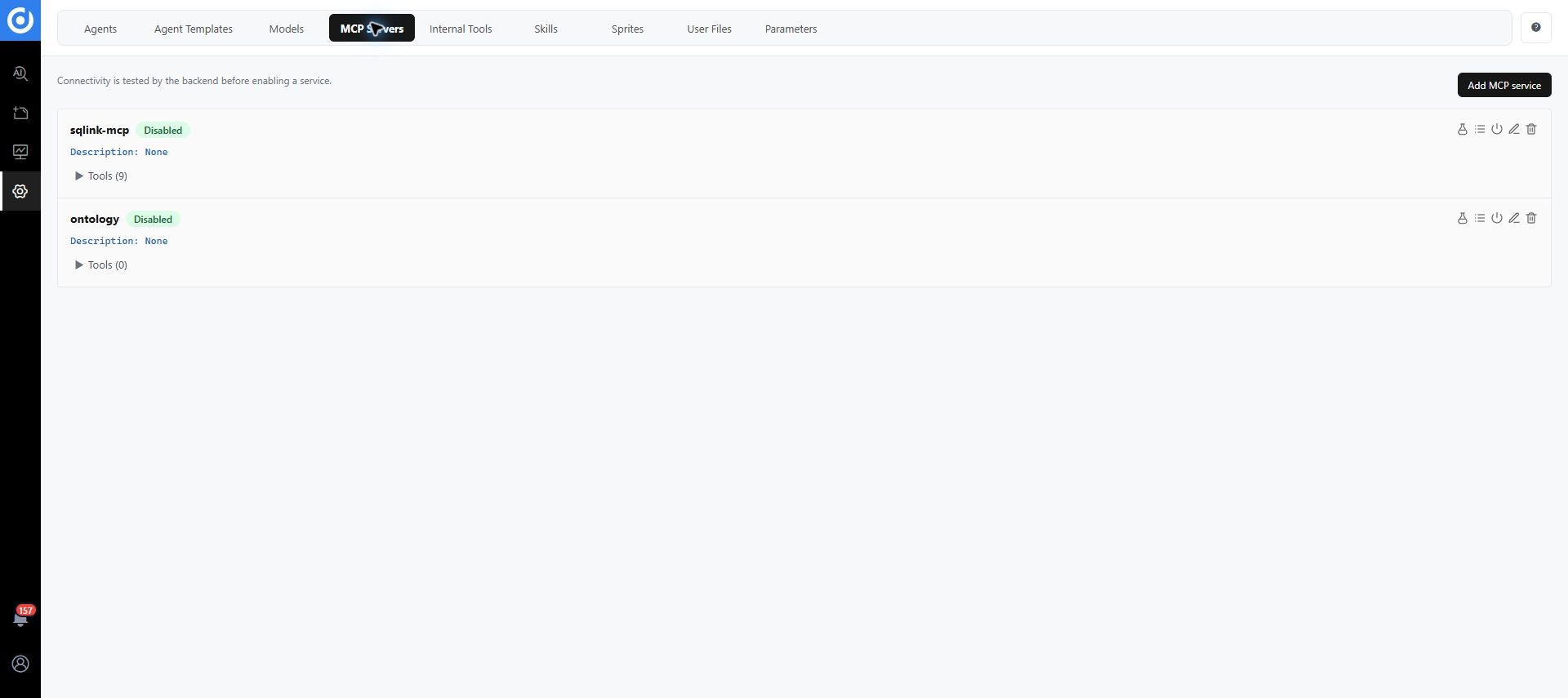
MCP services let DIG call tools from other applications. Open Configuration Management > MCP Services > Add MCP Service.
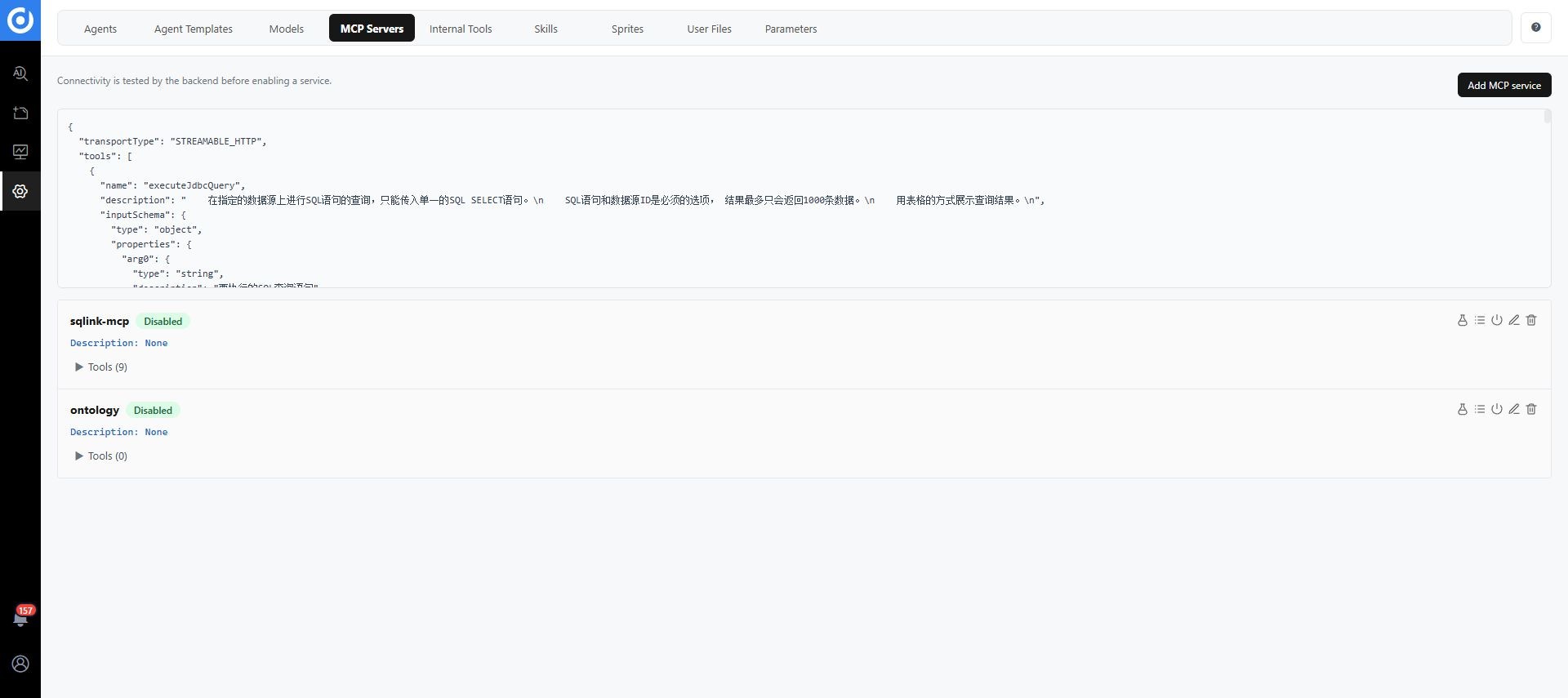
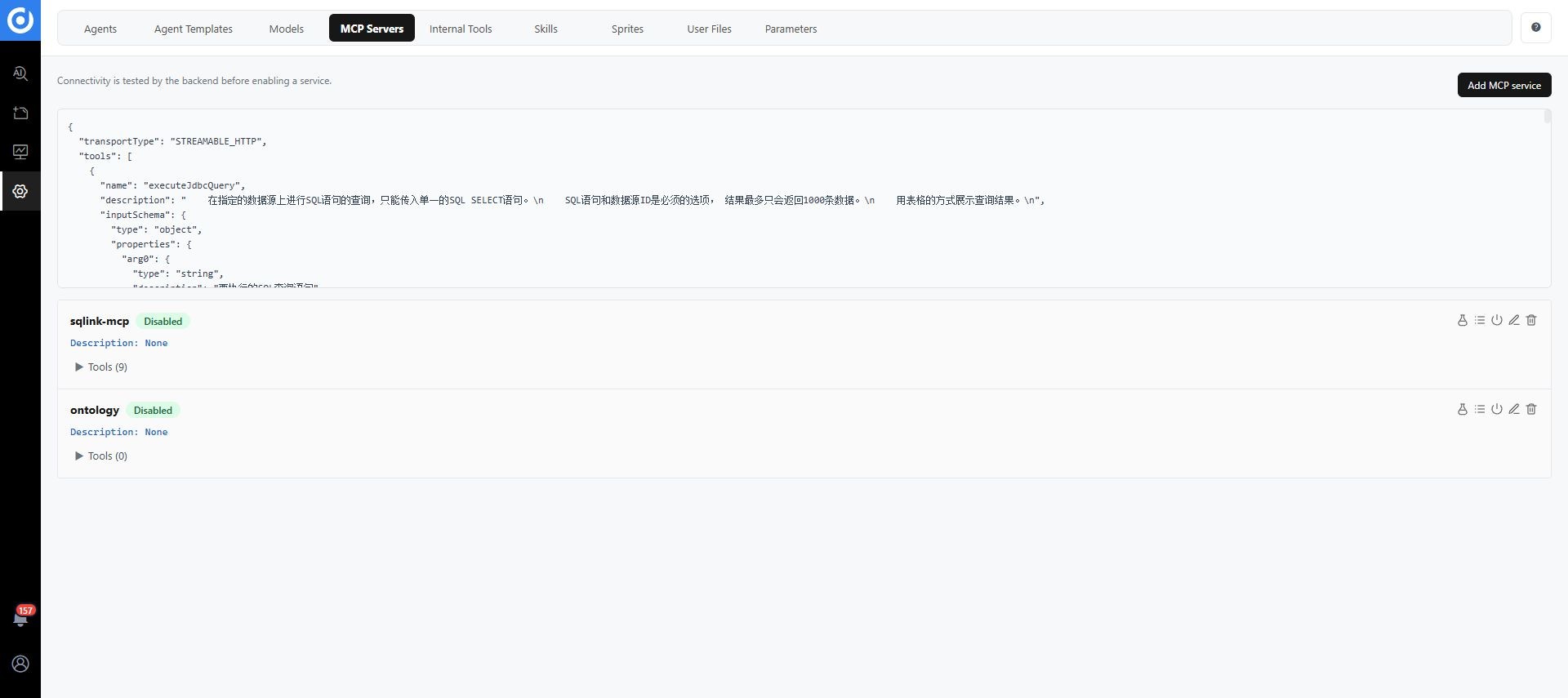
Open the full image. Addresses and names are environment examples.
| Field | Purpose |
|---|---|
| Name | Identifies the service in the list |
| Service address | MCP server address accessible from DIG Server |
| Connection mode | Streamable HTTP or SSE, matching the server |
| Connection timeout (ms) | Timeout for a connection test; adjust the initial value for your network and service |
| Custom settings JSON | Valid JSON for additional server settings |
| Headers JSON | Required request headers; manage credentials according to enterprise policy |
| Description | Purpose and applicable agents |
Click Test, then save. Tools (count) lists exposed tools; View Details shows definitions. The backend also tests connectivity before enabling the service. Connectivity does not establish correct output or authorization for every tool. Check dependent agents, Skills, and Sprites before deletion or disabling.
Internal services
Open Configuration Management > Internal Services. Use Upload YAML for bulk import or Add Internal Service for one definition.
| Field | Meaning |
|---|---|
| Name | Display name |
| Target application | DAM or another application that owns the interface |
| Description | Purpose, scope, and risk |
| Service interface | Interface declaration or identifier |
| Service path | Invocation path |
| Method name | Underlying interface method |
| Parameters JSON | Input definition |
Saved changes take effect immediately. Internal services expose program interfaces without requiring a separate MCP or CLI for every interface. Review inputs, outputs, identity propagation, and write effects, then test a minimal sample. Apply stricter authorization and approval to create, update, publish, and delete services than to read-only queries. Quick invocation does not bypass business permissions.
Skill management
Skills package reusable governance instructions, Markdown prompts, package paths, interface dependencies, tool constraints, and test cases.
Open Configuration Management > Skill Management and choose a scope:
- Agent: stored in the current agent's working directory and enabled in sessions according to configuration. Scan the workspace, upload ZIP, or choose Add Agent Skill. Supply Skill code, name, and content. Existing Skills can be enabled by default for the agent.
- Global: add, edit, delete, and inspect system-available Skills by code, name, and content.
- User: maintain the current user's Skills; this scope differs from global availability.
Preview Markdown after editing. Check JAR or Python dependency paths and DAM interfaces, then test typical and failure cases. Reuse default Skills where suitable. For interfaces requiring user identity, custom Skills should reference ${session.token} at runtime rather than embed a fixed token.
Governance Sprites
Open Configuration Management > Governance Sprites, select the agent, and switch between Sprites, Routines, and Execution History. Sprites perform bounded tasks; Routines organize order, mappings, and failure handling. See Sprites and Routines.
User files
Files provide context for sessions and tasks. Administrators can manage all user files; ordinary users manage their own, subject to deployment permissions.
In User File Management, select the agent to edit content, reference a file in AI, download, rename, or delete. New sessions can reuse uploaded files. Check references before replacement or deletion so historical tasks retain their evidence.
Parameters
Open Parameter Configuration. System parameters come from runtime. Global parameters and My Parameters are static values substituted when distributing Skills and invoking prompts. They support adding, editing, copying, deletion, and preview.
Examples include {workspace.dir} for the agent tool directory and {usr.name} for the current username. See initial setup for baseUrl and identity. Check destination user and purpose when copying credentials, and exclude real values from screenshots and feedback.
Saved prompts
Maintain prompts in the interface or import a supported format. Include goals, scope, rules, constraints, and expected output. Preview and test before user release. Prompts are instructions; enforce permissions in the actual tools and services.
Release checks
- Agents are visible only to authorized users.
- Model, MCP, and internal service connections work and errors are diagnosable.
- Agents bind only required tools and Skills.
- Confirm whether each write task requires manual review, batch approval, or permitted automatic approval under enterprise policy. An available approval page does not mean every task enforces manual approval.
- File and parameter visibility follows security requirements.
- Credentials are excluded from ordinary pages, logs, prompts, and exports.
- Configuration, testing, and publication have audit records.
Troubleshooting
Saved configuration appears ineffective. Compare the selected agent with the agent used by the session. Check dependencies and parameters. Template changes do not update existing space instances.
Model tests pass but tasks fail. Check the DAM URL, user identity, and tool logs. Models, MCP, and internal services are separate connection stages.
A new session cannot find a file. Check user, agent, file list, and whether the file was deleted, replaced, or referenced incorrectly.