
Approvals and collaboration
Screenshot note: Screenshots are illustrative. Controls or labels may remain untranslated in the demo release, and pages without a faithful English capture retain the source illustration. Control names and layouts can vary by release.
Whether proposals enter manual approval depends on the task and enterprise configuration. Manual review is recommended by default for changes to classification, standards, and metadata. Define the scope of any batch or automatic approval policy before release. For an approval request, reviewers must verify facts, policy, and target objects, then correct or reject unreliable proposals before submitting.
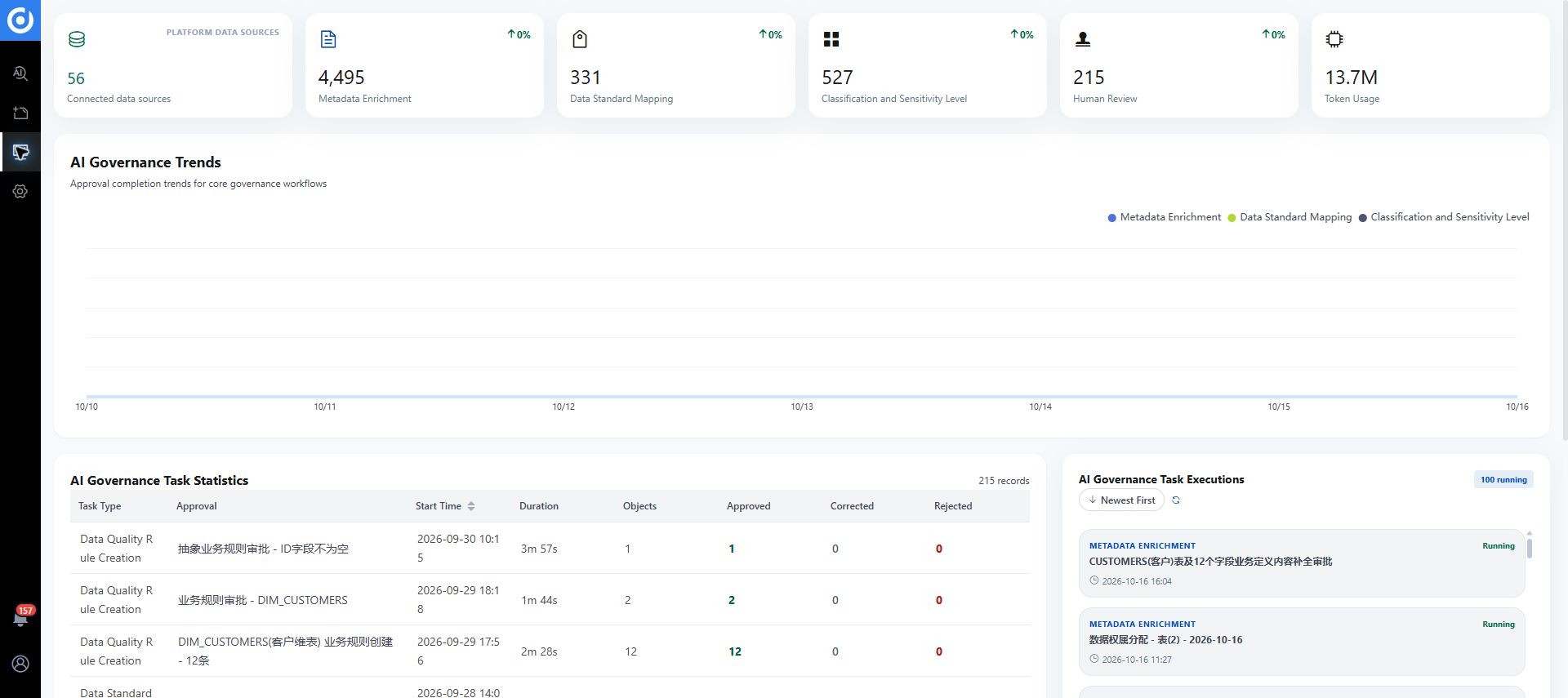
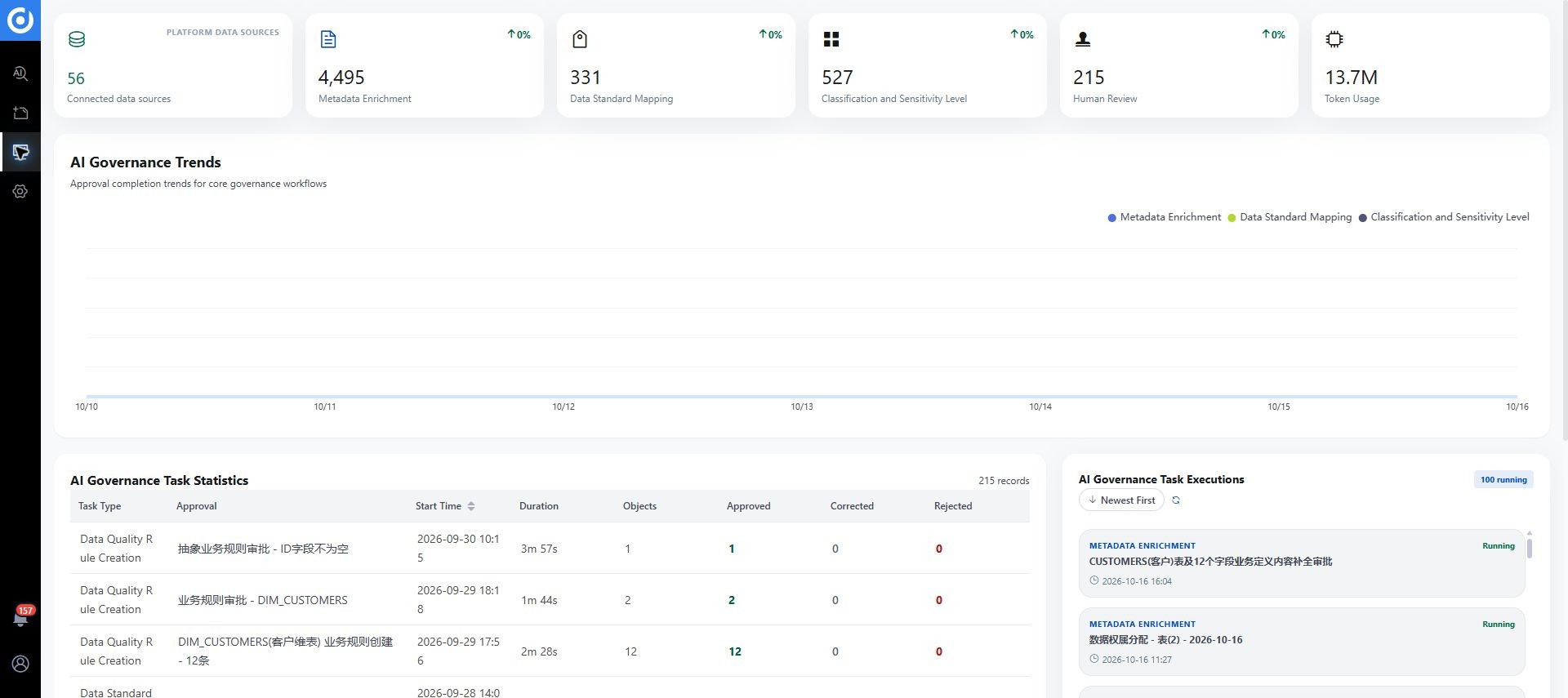
Open an approval request
- Open My Messages and select a pending request, or enter from a conversation or governance task.
- Search the list or open Filter to enter contains-keyword conditions. Multiple field filters apply together.
- Verify request name, type, identifier, total rows, and pending count.
- Switch between Pending, Approved, and Rejected to inspect decisions.
These states describe approval handling rather than publication or execution in DAM. Check the target module after approval.
Review details
The list typically shows assets, classification categories or standards, proposed fields, confidence, and rationale. Click View for row-by-row review and editable fields. The page also provides Approve All, Reject All, Reset All, Export, and Submit, with counts and progress.
Verify that:
- The object belongs to the correct system, environment, and domain.
- Before values match current DAM data.
- Proposed values satisfy business facts and enterprise policies.
- Proposals do not duplicate or conflict with published content.
- Rationale explains the proposal without fabricated evidence.
- The change is within the reviewer's responsibility.
Edit, approve, or reject
- Edit: correct an otherwise useful proposal in row review before deciding.
- Approve: approve complete, accurate, compliant proposals individually or in a verified batch.
- Reject: reject incorrect objects, evidence, or content and retain the reason.
In Continuous Mode, approving a row opens the next row on the current page. Otherwise, the view stays on the same row. Decisions can be reset before submission. Submitted results are read-only. Click Submit after completing row decisions to submit the entire request.
Open the full image. Shortcuts apply only to pending rows that have not been submitted.
Give specific reasons, such as incorrect scope, a conflicting policy definition, or incompatible technical properties.
Confidence scores
Scores and ordering help prioritize uncertain proposals. They do not replace business judgment: high-confidence output can lack context, while low-confidence output can contain useful evidence.
Process a batch
- Filter to the same task, object type, and rule scope.
- Check counts, exceptions, and low-confidence items.
- Sample details, before-and-after values, and rationale.
- Exclude high-risk items that require individual review.
- Approve or reject the confirmed batch.
- Check successful, failed, and unprocessed counts.
Increase sampling or review every row for classification, standards publication, key quality rules, and broad metadata changes. Scores alone are insufficient for batch approval.
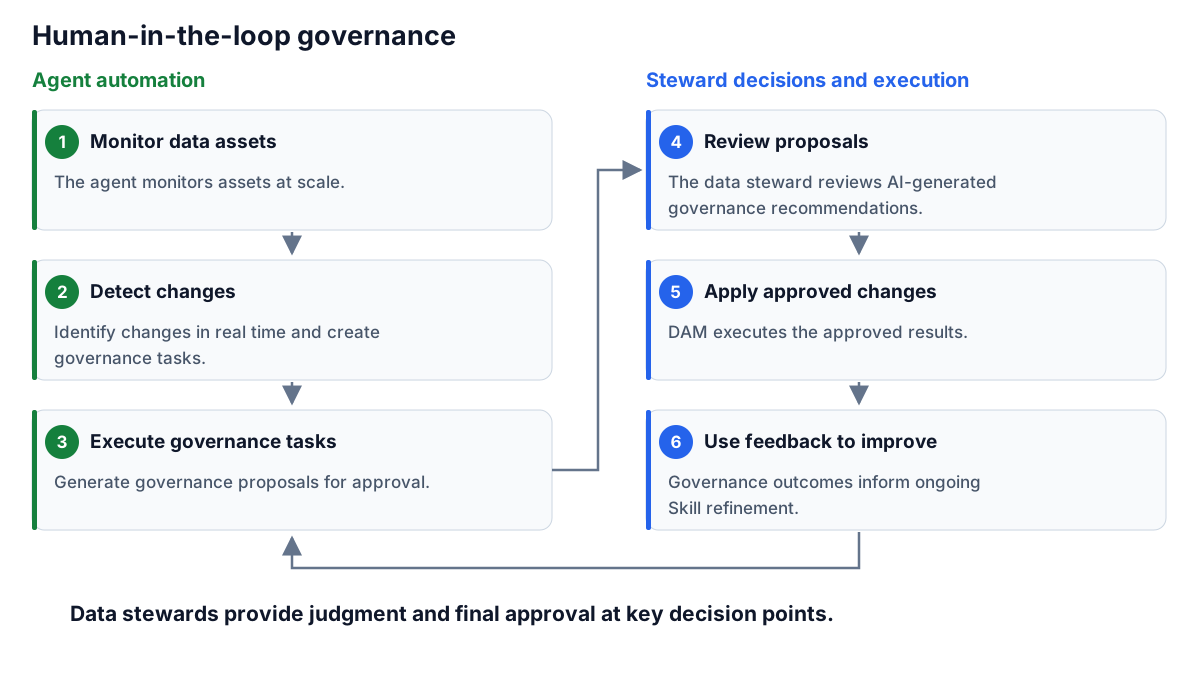
Close the feedback loop
Approved and rejected lists provide history. Feed recurring edits and rejection reasons into governance rules, prompts, and agent improvements.
- Define a governance goal.
- Generate proposals.
- Compare, edit, approve, or reject.
- Process results through the relevant DAM module.
- Verify actual status there.
- Improve configuration using recurring feedback.
This guide does not assume automatic approval. If enabled, product, governance, and risk owners should confirm scope, sampling, and rollback, and check remaining pending items.
Verify results
- The request matches the session, task, and objects.
- Decisions match edited content and reasons.
- Batch scope excludes exceptions and unrelated records.
- Results or subsequent states are visible in the target DAM module.
- Records retain operator, time, and necessary change information.
Troubleshooting
An approval request is missing
Check functional permissions, data scope, reviewer configuration, and whether the task reached approval.
Before values differ from DAM
Pause approval. Check object identity, concurrent changes, and stale context. Regenerate or resolve the conflict through the applicable process.
A batch partially fails
Record failed objects and errors. Check permissions, states, and concurrent updates. Retry only confirmed failures.