
Data Governance Agents quick start
Screenshot note: Screenshots are illustrative. Controls or labels may remain untranslated in the demo release, and pages without a faithful English capture retain the source illustration. Control names and layouts can vary by release.
DIG appears in DAM as Intelligent Data Governance. This guide uses a single table to demonstrate business metadata enrichment: open a conversation, select scope, generate proposals, review them, and verify DAM results. Use a table you are authorized to govern.
Prerequisites
- DIG is deployed, enabled, and licensed.
- You can access the DIG entry point and target objects.
- An administrator has configured a working model, agent, and tools.
- You have defined the goal, scope, reference policies, and acceptance criteria.
- Uploaded material contains only information you are authorized to use.
Without DIG, the AI icon and related pages are hidden. Role names are configurable; this guide describes responsibilities rather than fixed system roles. Administrators should complete initial setup if no agent is available. For ongoing domain governance, create a space.
Step 1: Open DIG
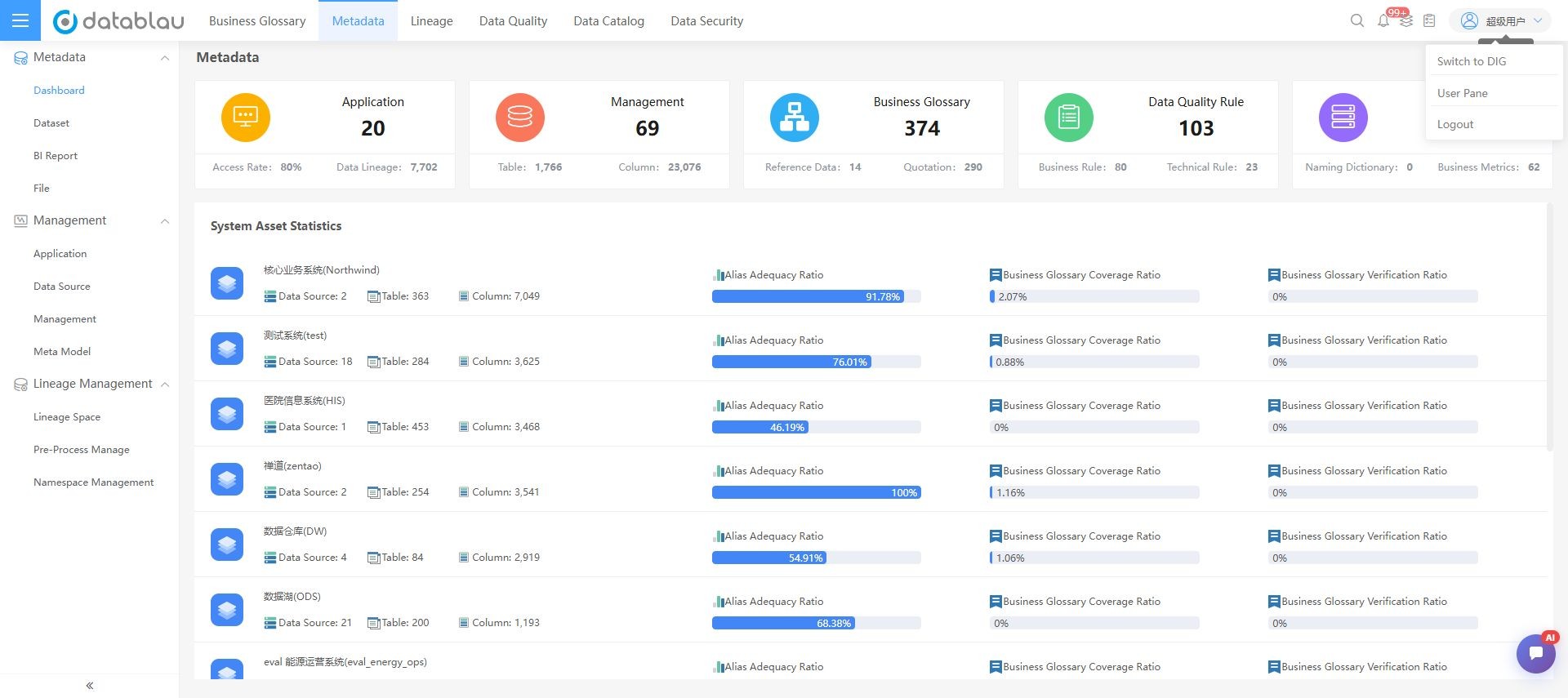
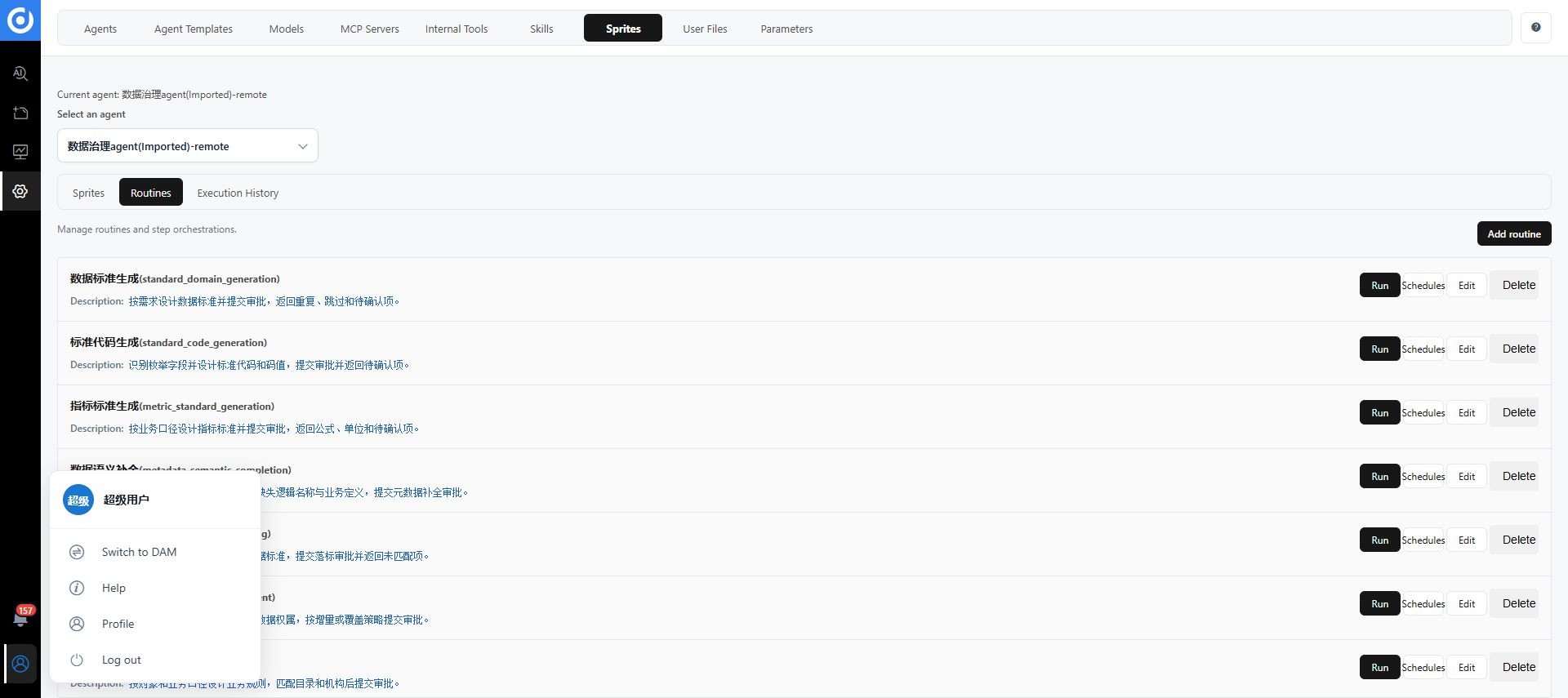
Open the AI icon at the bottom right of DAM. A magic wand or governance action on an object detail page includes that object's context. Verify the object and its system after opening the conversation.
To open the standalone workspace, choose Switch to DIG from the DAM user menu at the top right. To return, choose Switch to DAM from the user menu at the bottom left of DIG.
Step 2: Start a conversation
Conversation controls
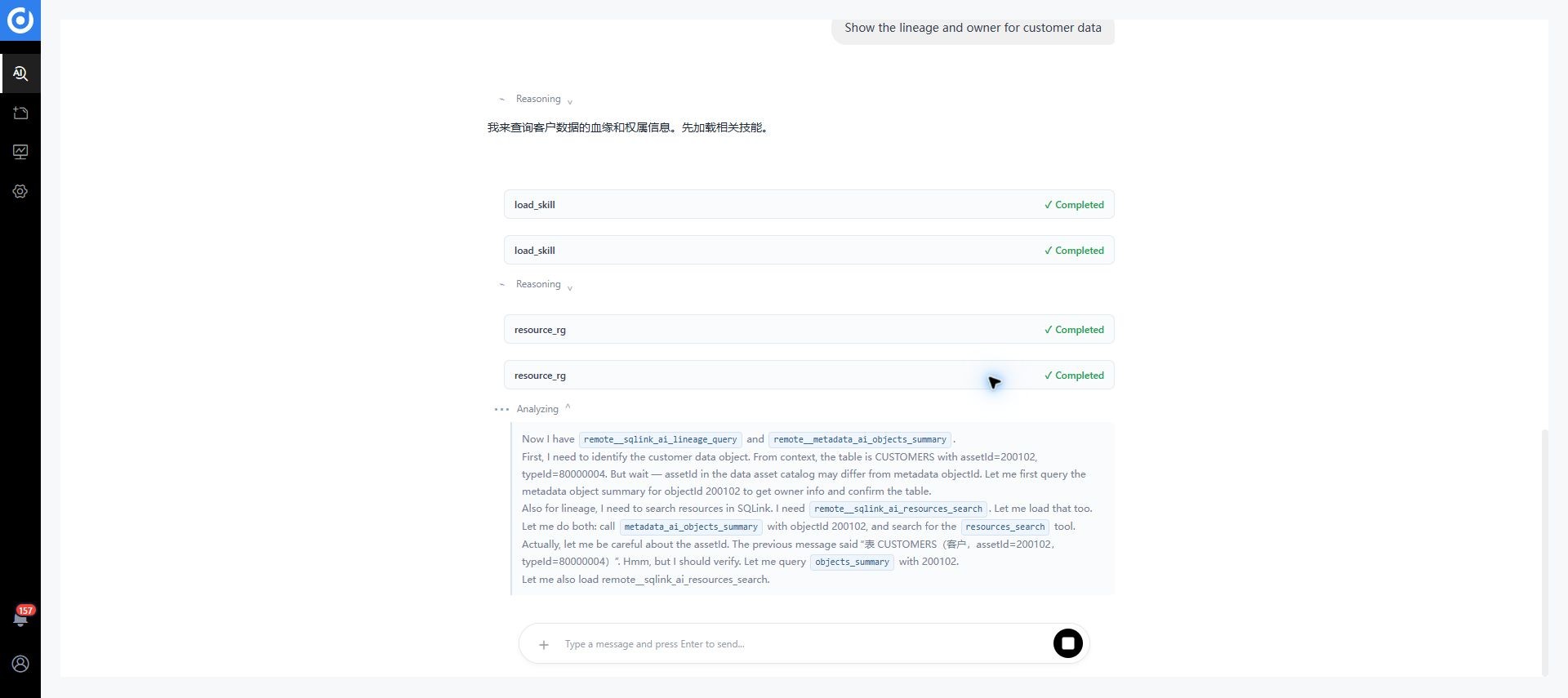
Depending on permissions, the conversation toolbar provides Conversation/Plan, New Session, agent selection, user processes, approval requests, saved prompts, file upload or references, and session history.
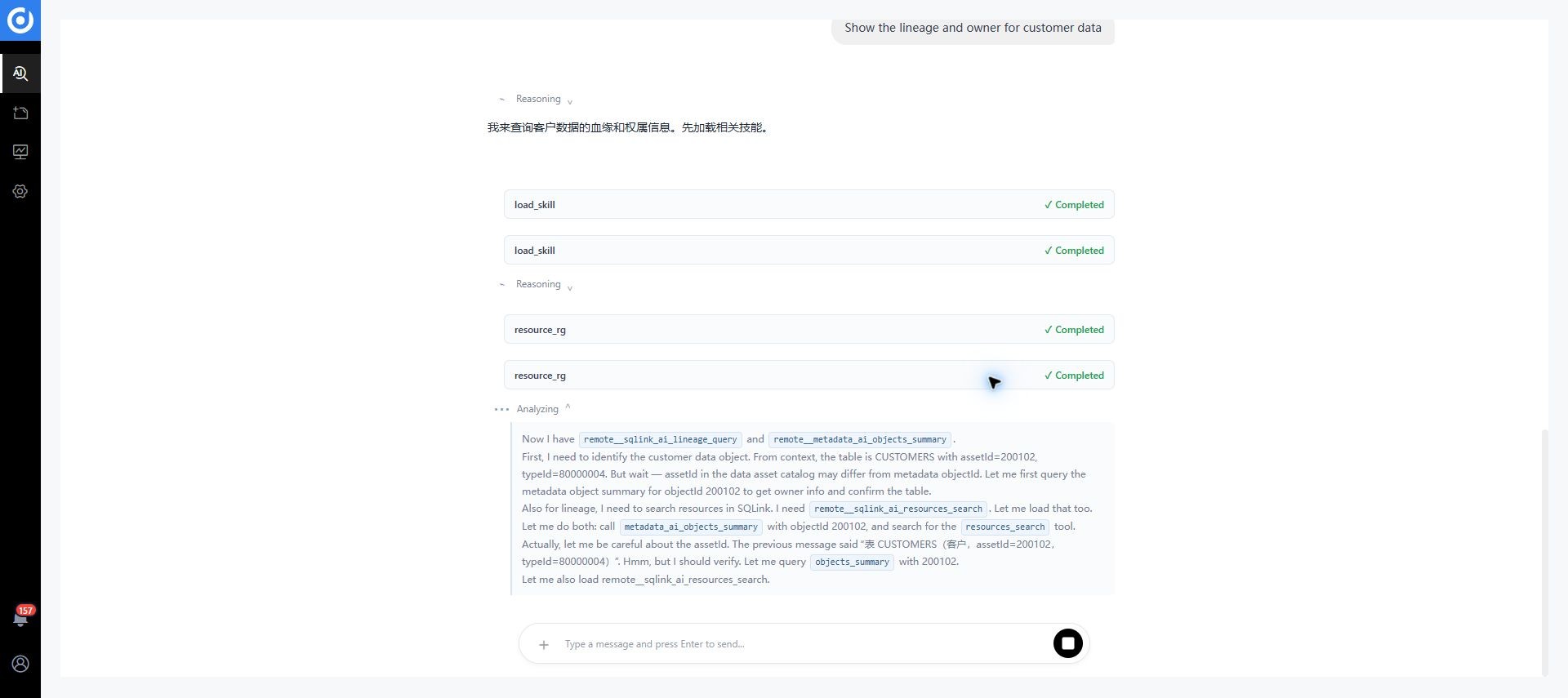
Open the full image. Administrators use Configuration Management in DIG to configure agents and resources.
Governance dashboard
The dashboard shows AI governance metrics, approval completion trends for core workflows over the last five days, historical task statistics, and live executions. Use these to track progress, then verify results on the DAM objects.
Create a session
- Open AI in DAM and select New Session.
- Choose an agent suited to the task.
- Describe the goal, object scope, references, constraints, and expected result.
- Upload supporting documents or select authorized files when needed.
- Submit the request and observe execution.
- Check proposal scope and errors before reviewing the approval request.
| Request element | Include |
|---|---|
| Goal | Enrich, generate, validate, map standards, or inventory assets |
| Scope | Data source, table, fields, subject area, or other objects |
| Evidence | Enterprise policies, published standards, or business context |
| Constraints | Exclusions, naming rules, or thresholds |
| Acceptance | How a reviewer can determine whether proposals are usable |
Use object selection controls where available. Verify system and environment; manually typing an object name can select the wrong object with the same name.
Step 3: Submit a bounded task
Open an authorized table, use its governance entry point, and verify the table, system, and fields. You can select a Chinese business name enrichment prompt from My Prompts and replace its example scope and business context, or use this example:
Inspect the selected table. Propose values only for fields that lack a Chinese business name or business description.
Use the business documentation I provide and preserve existing, accurate descriptions.
List each object, current value, proposed value, and rationale. If the meaning is uncertain, identify the missing evidence.
Submit proposed changes for human confirmation.
This is an example, not a fixed system rule. Avoid unintended scope such as all data sources. See governance capabilities for other task inputs.
Session identifiers and states
A session key combines agent identifier and username. Only one session for that key is ACTIVE. Each conversation instance has a separate Session ID; other historical sessions are CLOSED. Include the identifier and incident time when reporting an issue.
| State | Meaning | Action |
|---|---|---|
ACTIVE | The session can continue or retains active context | Verify current objects and files before continuing |
CLOSED | The session is closed | Reactivate it from history or start a new session |
Before reactivating history, confirm that referenced documents, policies, permissions, and object scope remain valid.
Upload and reuse files
- Upload a file in the session or select one from user files.
- Check its name, source, purpose, and visibility.
- Specify which file and sections the task should use.
- Verify that the output uses the material correctly.
Check revision, effective date, permissions, and sensitive information before reuse. Documents provide context; reviewers still determine policy applicability.
Start governance from DAM
Supported DAM pages provide a magic wand or governance action. It carries object context into the task, but you must still verify scope, system, and task type. Test a small sample before processing a batch.
Step 4: Monitor execution
Inspect tool steps, progress, processed objects, omissions, and errors. User Processes shows your task execution. If a task stalls, record its session identifier and ask an administrator to check model and tool services before resubmitting the same large task.
Treat generated content as proposals and submit governance results for human review in this workflow.
Step 5: Review and verify DAM
- Open My Approval Requests from the conversation and find the task.
- Compare current and proposed values against the business evidence.
- Edit, approve, or reject items and record reasons when needed.
- Return to the table and verify approved Chinese business names and descriptions.
- Supply missing context for unresolved fields and retry only the remaining scope.
See approvals and collaboration for details. Expand scope gradually or use a space after this initial task succeeds.
Completion checklist
- The correct agent and objects were used.
- Reference documents and policies remain valid.
- Actual scope matches the request; skipped and failed items have explanations.
- Proposals were reviewed rather than treated as published results.
- Sessions, processes, files, and approvals can be traced to one another.
Troubleshooting
DIG is unavailable. Check deployment, license, functional permissions, and module entry points with an administrator. A DAM account alone does not grant DIG access.
A historical session cannot continue. Check state and try reactivation. If the agent, files, or permissions have changed, create a new session with valid context.
Proposal scope is incorrect. Stop further approval, reselect objects, and specify system, environment, table, and fields. Split large tasks when needed.