
Security gateway quick start
Screenshot note: Screenshots are illustrative. Controls or labels may remain untranslated in the demo release, and pages without a faithful English capture retain the source illustration. Control names and layouts can vary by release.
Use one account to query a few approved samples through JDBC and verify dynamic masking.
Before you begin
| Requirement | Check |
|---|---|
| Source/samples | Available objects and approved scope |
| Identity | DAM or virtual mode and intended user |
| Expectations | Allowed rows, masked and unchanged columns |
| Gateway/driver | Address, service port, package |
| Client | Custom-driver and connection rights |
Use actual business identities and authorized samples, not administrator substitutes or altered sensitive production data.
1. Configure scope and masking
Prepare Rules and Policies for the same identities/objects. Record field expectations. Saved rules alone do not prove masking.
2. Configure the server
Follow Server setup, enable, and inspect state.
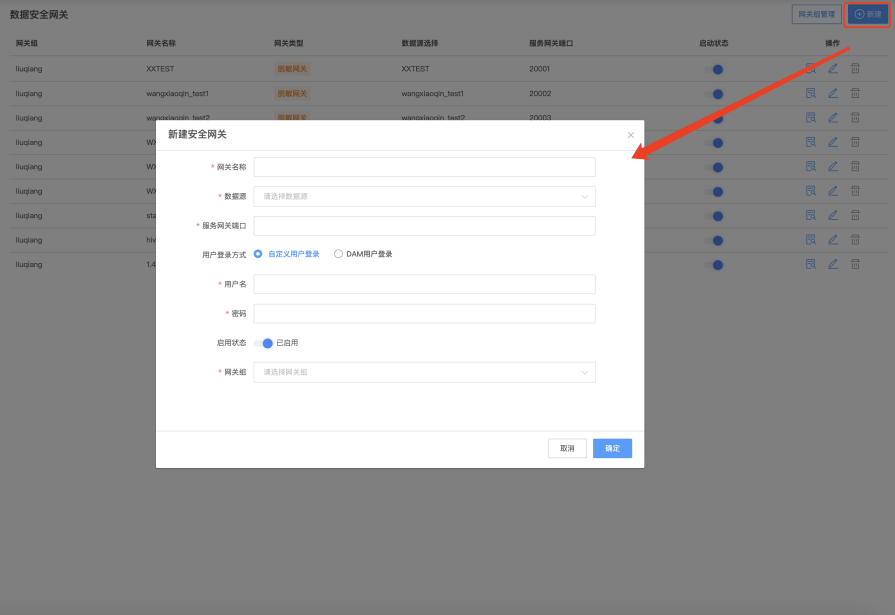
Verify source, port, login mode, advertised addresses, and credential origin. Click to open the full image.
3. Connect the client
Follow JDBC setup. In DBeaver add com.datablau.jdbc.Driver, then use jdbc:datablau://[host]:[port] with real values and mode-matched credentials. Test and browse. Resolve network/service/driver/authentication before changing masking.
4. Query and inspect audit
- Query explicit policy-covered fields within scope.
- Compare rows, masked fields, and other columns with expectations.
- Record gateway, identity, time, and result.
- Find the same SQL in Log Audit.
- Extend approved cases through Verification.
Results must match expectations and audit. Source data remains unchanged.
Completion and next steps
Verify connection, policy persistence, and masking separately before expanding. For BI identities, use FineBI integration and test mappings/defaults independently.