
Run validation tasks and review quality reports
Screenshot note: Captured from the English interface. Some controls are still untranslated in this release; demo data names retain their original language.
A validation task runs published technical rules once or on a schedule. Successful execution means the run completed. Review rule results and failed records to determine data quality.
Create a validation task
Verify published rules, configured business systems, and working execution connections. Start with an approved scope before scheduling all rules.
- Go to Data Quality > Validation Tasks > Validation Tasks. Under New, select New Quality Validation Task.
- In Basic Information, enter the name, run time, and time filter.
- In Issue Management, select the business system. Configure email notifications and verify recipients as needed.
- Click Add Technical Rules and select published rules for that system. Some interfaces call this Add Quality Rules.
- Review rules, parameters, and data scope, then click OK at the bottom.
- After execution, check the last scheduling result and open details for run history.
For missing rules, check publication status, system, and permissions. Do not create duplicates to bypass the problem.
Configure basic information and scheduling
| Setting | Purpose and checks |
|---|---|
| Task name | Required. Include scope and purpose for easier searching. |
| Run time | Required. Use selection mode or a custom schedule. |
| Repeat interval | Select once, daily, weekly, monthly, quarterly, yearly, or not scheduled, and complete the time settings. |
| Time filter | Restricts eligible dates using a time template; does not filter business dates in SQL. |
| Business system | Required for issue ownership and rule scope. |
| Email notifications | Verify recipients and the email service. Enabling the switch does not confirm delivery. |
| Parameter list | Review names, current values, data types, and expressions against the intended scope. |
Daily scheduling does not execute immediately on save. Check the next run time. Not Scheduled does not establish automated checks. See Task scheduling for time template intersections and enablement.
Configure email notifications
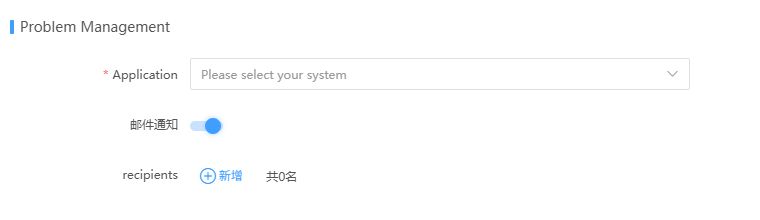
The screenshot identifies system, notification, and recipient settings. Match recipients to validation and remediation responsibilities. If a completed task sends no email, check enablement, recipient users and addresses, then Email configuration. Missing email does not mean the task did not run.
Verify selected technical rules
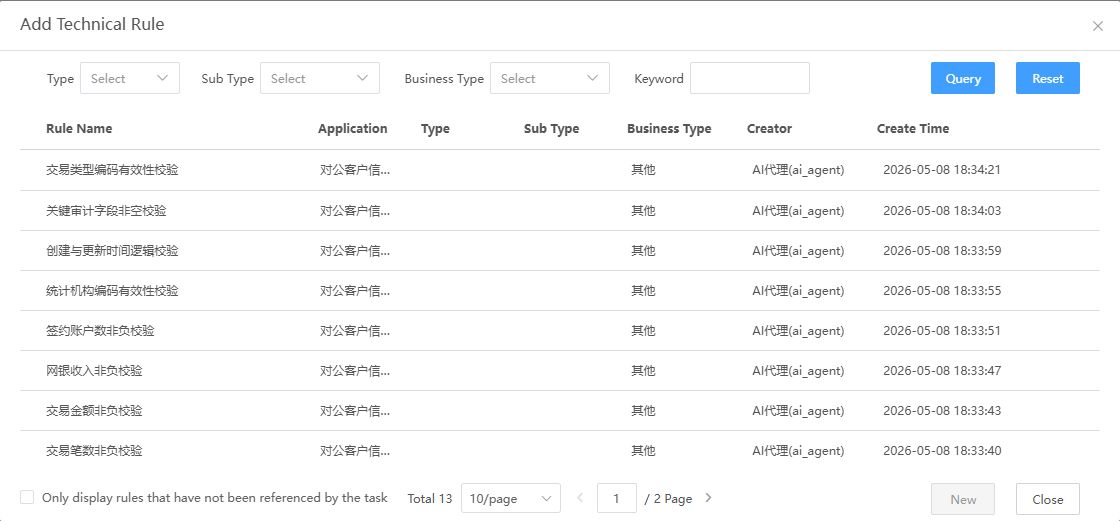
The screenshot shows filtering and adding rules. For an empty list, check the prerequisites above. After adding, verify names, systems, categories, business types, and statuses. Search selected rules by name, category, subcategory, and business type. Remove All clears selected rules; it does not reset search filters.
Check run results
- Find the task by name, system, and interval. Review time filters.
- Check Last Scheduling Result, Last Start Time, Last End Time, and Next Run Time.
- Select the intended run in details and verify its time, status, and rules.
- On failure, inspect logs, connections, SQL, parameters, and permissions before retrying.
- After success, inspect Issues and failed records. If expected issues are missing, check rule inclusion, filter scope, and actual data checked.
Use Edit to change a task and name search to find it. Review schedules and dependencies before deletion. See Task scheduling for nodes and time restrictions.
Read the three report types
| Page | Focus | Question |
|---|---|---|
| Quality Overview | Issues, failed records, overdue items, and distributions; cards depend on dashboard settings | What is the governance status? |
| Rule Report | Rule types, systems, additions, and removals | Where is validation coverage? |
| Issue Report | Issue types, systems, and related statistics | Where are failures concentrated? |
Use reports to identify priorities, then inspect rules, runs, and issue details. An aggregate score does not prove a table meets all requirements.
Filter Quality Overview by period, system, organization, business type, importance, and overdue status. Issue Count counts issue lists; Issue Record Count counts individual failed records. Align filters before drilling into overdue or organizational distributions. Use Export PDF and retain the query scope with the file.
Troubleshoot common issues
| Symptom | Checks |
|---|---|
| No selectable rules | System, publication status, visibility permissions |
| Unexpected next run | Interval and time, time template, scheduling status |
| Success but issues remain | Same run, failed records, remediation and verification |
| Old results after editing | Whether a run started after the change |
| More records than issues | Whether one issue list contains multiple failures |