
Map, preview, monitor, and query metrics
Screenshot note: Screenshots are illustrative. Controls or labels may remain untranslated in the demo release, and pages without a faithful English capture retain the source illustration. Control names and layouts can vary by release.
Map metrics and dimensions to physical tables after definition. Prepare accessible sources, tables, and query permissions.
Configure metric mappings
- Open a metric from Atomic/Calculated or Qualified Metrics.
- Select one or more related dimensions under Metric Mapping.
- Select the source and metric table through its system.
- In Relationship Mapping, inspect Property Information and Type. Map the metric row and each dimension row to the appropriate column.
- Check every mapped column and add notes. Verify affected properties before unbinding or remapping a row.
- Reopen mappings and verify dimensions, source, table, and physical columns.
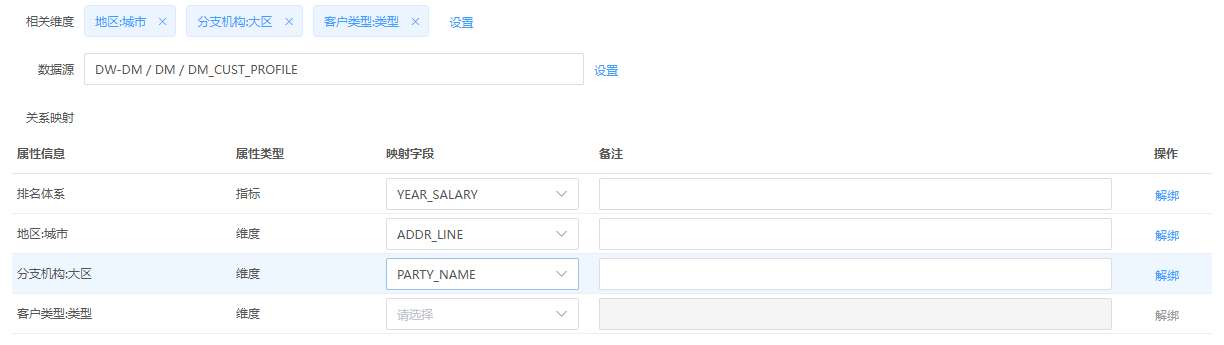
The screenshot illustrates controls and includes incomplete rows. Complete and verify every actual mapping.
| Area | Check |
|---|---|
| Related dimensions | Select required perspectives after agreeing on grain |
| Source | Correct physical table and environment |
| Property/type | Distinguish metric and dimension rows; include the metric itself |
| Mapped column | Meaning, type, unit, grain |
| Notes | Explain mappings, especially differing business/physical names |
| Unbind | Removes the row association; recheck previews afterward |
Preview and verify data
Metric Preview generates SQL from mappings and queries immediately. Compare known samples and dimensions. For empty results, check mappings, rights, and source records rather than editing dimension descriptions.
- Choose approved samples with known expected values and dimensions.
- Verify metric/dimension correspondence in preview.
- Compare units, time scope, and grain; returned values alone do not prove correctness.
- Correct mappings and verify source logic. Qualified names do not automatically add periods or qualifiers to extraction.
- Retain conclusions before enabling other users and verify each user's preview rights.
Set up alerts and monitoring
Configure thresholds and recipients in Alert Settings. Analysis/monitoring queries use alert schedules; task scheduling scans and executes them.
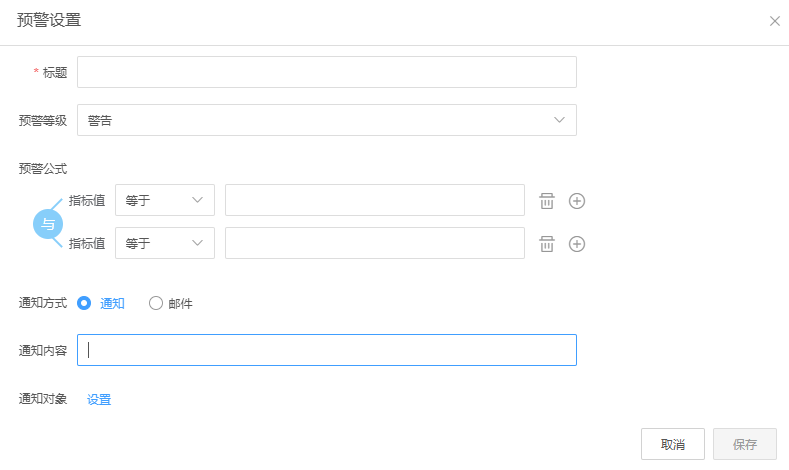
- Enter an identifiable alert title.
- Choose priority according to organizational policy.
- Set comparisons and thresholds in Alert Formula. For multiple conditions, verify their combination. The screenshot uses AND, requiring all conditions.
- Choose Notification or Email. Check Email configuration.
- Enter content and set recipients.
- Save, review, and verify results/notifications after scheduling, or cancel to discard.
Title is required in the screenshot. Other validation and available levels/operators follow the current form. Scheduling scans alert settings daily; inspect execution history for effective timing. Saving is not immediate querying or triggering. Check threshold units, execution, and notification setup; distinguish business anomalies from technical failures.
Organize subjects and self-service queries
- Build source-centered metric collections in Subject Folders.
- Select a subject in Metric Applications > Self-service Query.
- Query available metrics/dimensions and verify sources and definitions.
- If unavailable, inspect included metrics, mappings, and authorization.
Related: Overview, Definitions, Governance, Scheduling, Email.